Picture lock
Sign-off
Set up an approval workflow with as many phases as you need, send the credits for approval, and get one locked version that everyone signed off.
The video loads from YouTube when you press play. Watch it on YouTube.
Before the credits go on screen, the producers, the lawyers and the distributor all have to sign them off. Doing that over email with a PDF leaves you guessing who approved which version. In EndCreditsPro the sign-off is built into the project, phase by phase: you send the credits once, they’re locked while people review them, and every decision is kept.
Before you start
- To set up the project’s approval workflow, send the credits for approval, or move them back to editing, you need to be an admin or editor on the project.
- Approvers don’t need an account. Each one gets a private link by email.
- Main titles and end credits each have their own approval workflow.
Steps
1. Set up the phases
- In the project’s sidebar, open Approval workflow and pick Main titles or End credits.
- The workflow always starts with the Editing phase, where the credits are open for changes. Below it come your approval phases: Phase 1, Phase 2 and so on, in order.
- Click Add step to add a phase and give it a name, for example Producers, Legal review or Distributor. Click Remove phase to delete one you don’t need, and drag phases to reorder them.
- In each phase, click Add approver and enter their Email, Name (optional) and Language. The language is used for their email and their review page.
- Choose the phase’s Quorum:
- Unanimous approval: every approver in the phase has to approve.
- Anyone can approve: the first approval is enough.
- Click Save changes.
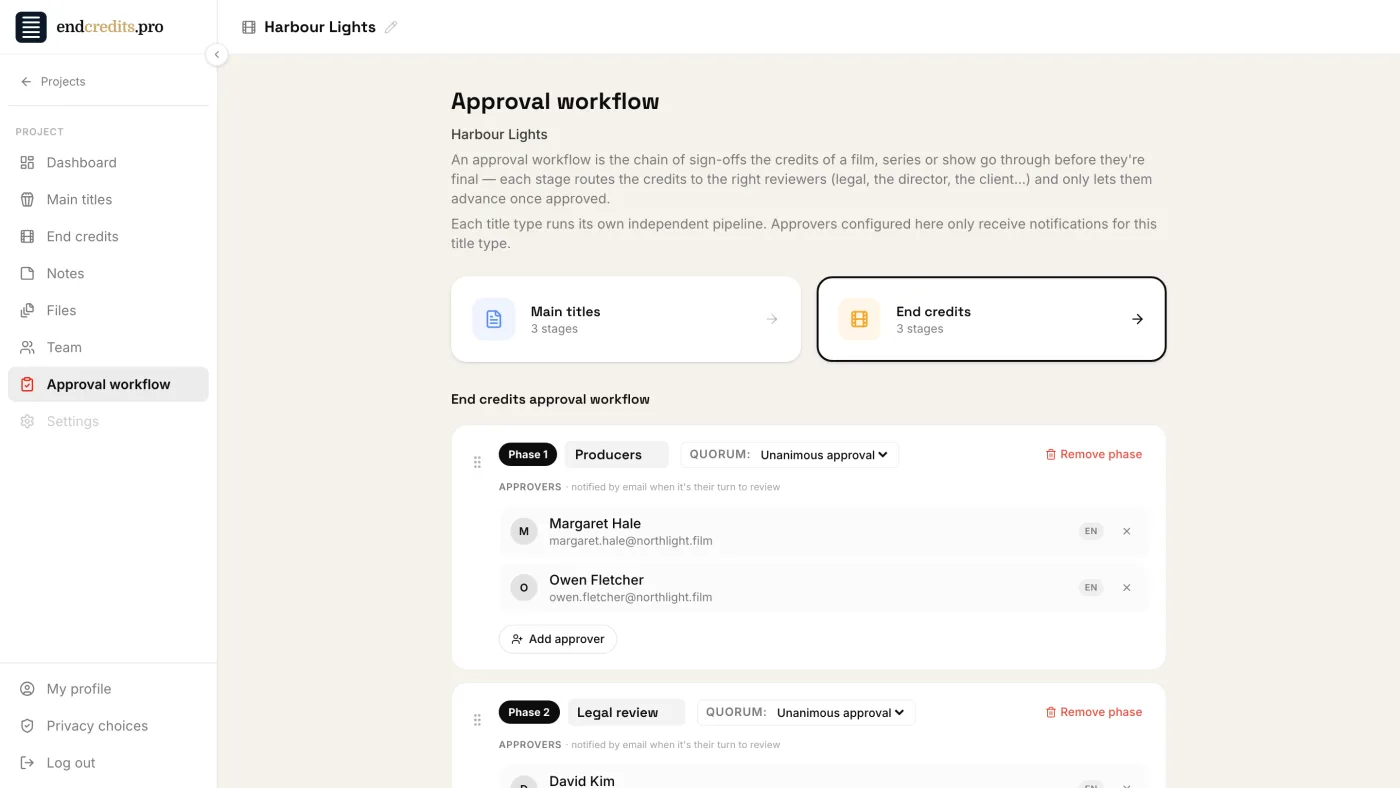
Organisation template. An organisation admin can set up the same phases once under Approval workflow in the organisation’s sidebar: new projects start with those phases and approvers. A project shows “Inherited from your organization template” until you change it, and Reset to organization template takes it back.
2. Submit for approval
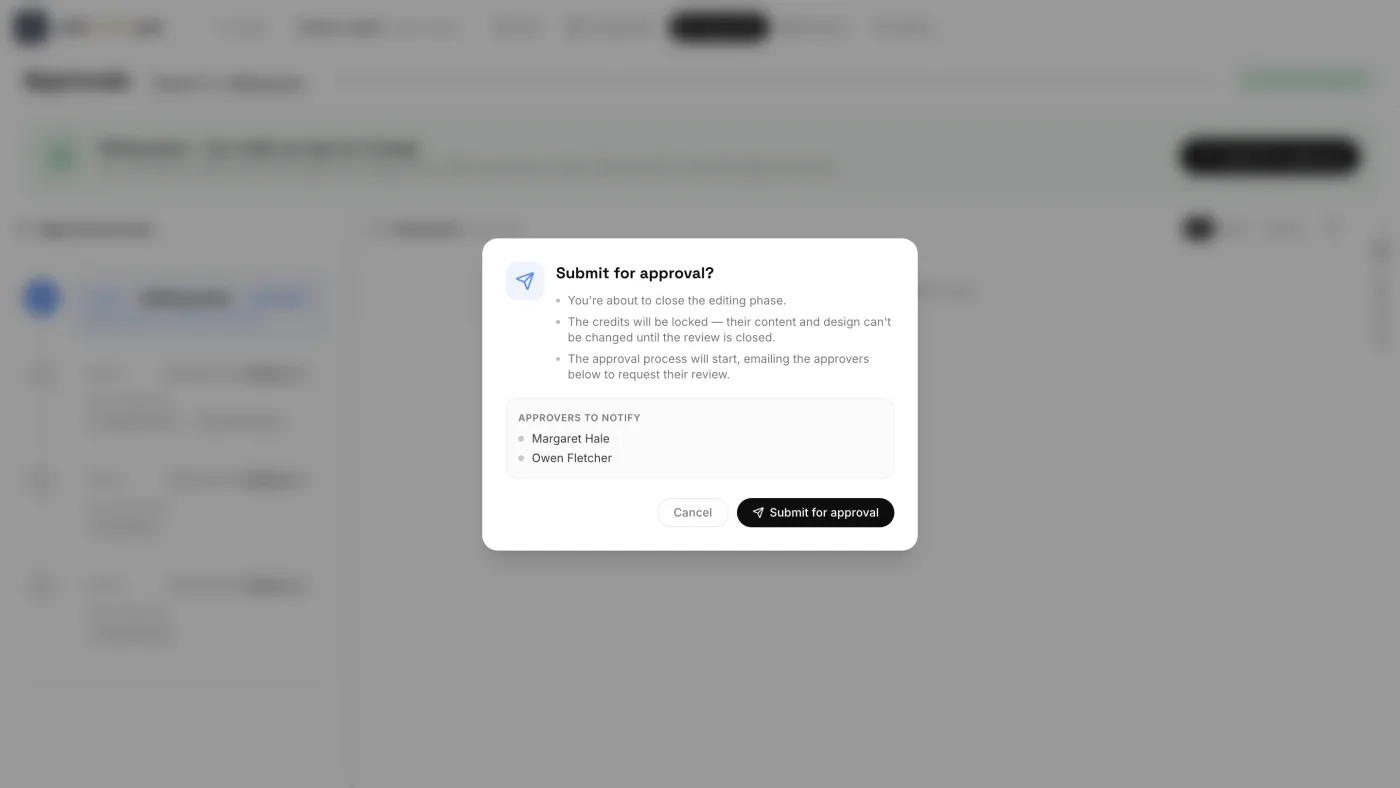
When the credits are ready, open the Approvals tab and click Submit for approval. The confirmation lists the Approvers to notify in the first phase. Confirm with Submit for approval.
From that moment:
- The credits are locked. Their content and design can’t be changed until the review is closed. The Data and Composition tabs show Locked for approval.
- A version is saved in History (“Before approval”), so you always know exactly what was sent.
- The approvers of the first phase get an email with their own private link.
3. Approvers approve or decline
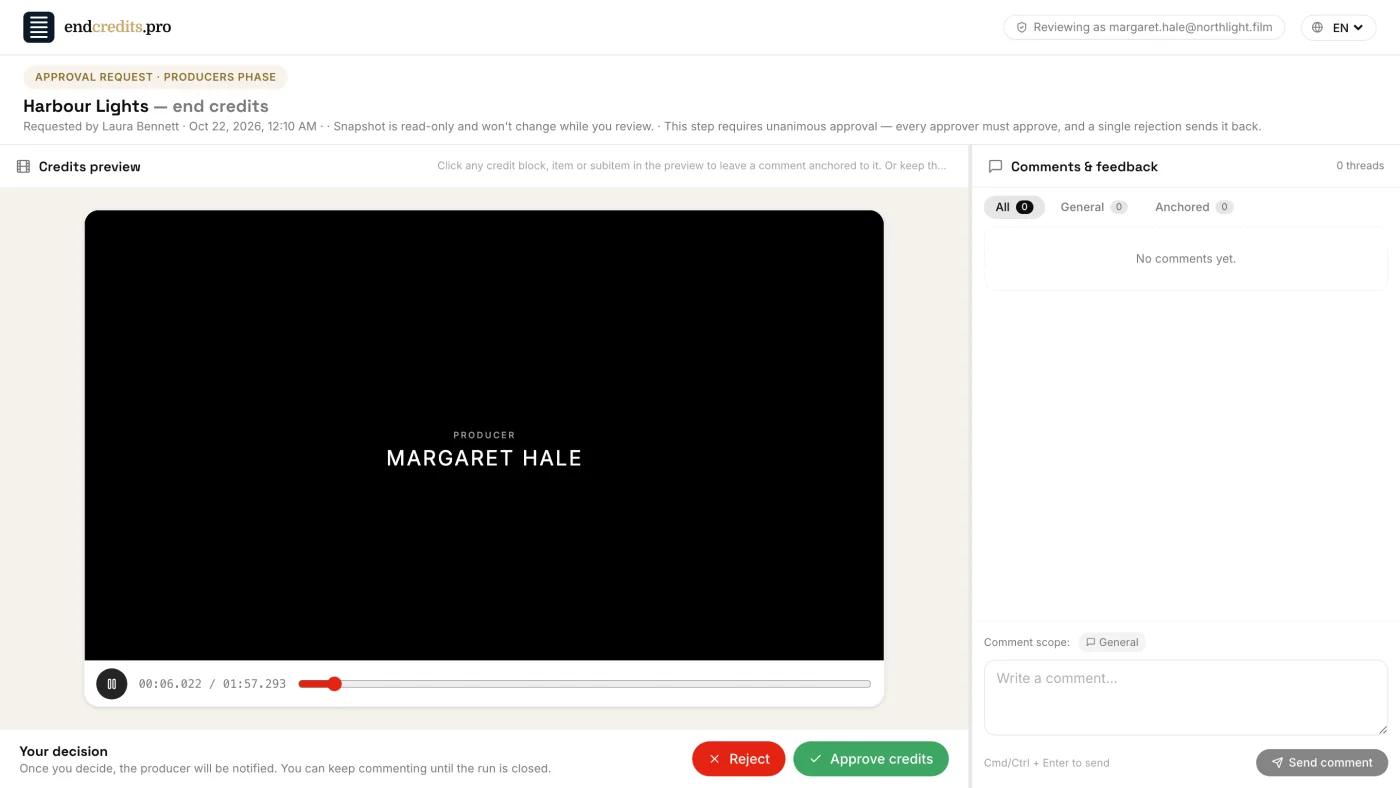
On their page, each approver plays the credits and can comment on any block or line, or leave a general comment. Then they decide:
- Approve credits, with an optional note.
- Reject, with a comment that says why. The comment is required.
When a phase is approved, the next phase starts on its own and its approvers get their email. A phase with no approvers is skipped.
In the Approvals tab you follow each phase: who has voted, who you’re still waiting on, and their comments, which you can filter by Phase, Round and Person. Resend sends one approver their link again, and Resend to everyone reminds the whole phase.
4. If someone declines
In both quorum modes, a single rejection stops the phase. The Approvals tab shows that the phase was rejected, with the approver’s comment, and the credits stay locked until you act:
- Click Back to editing phase, then End run & unlock. The approvers’ links stop working.
- Make the fix in the Data or Composition tab.
- Click Submit for approval again. The new round starts from Phase 1, with a new History version.
Every round is kept: the comments are grouped by round, and History records who sent what for approval, who approved or rejected each phase, and when.
5. Signed off
When the last phase approves, the Approvals tab shows Credits are signed off. The credits stay locked, so what you render is exactly what everyone approved: click Generate render to go to the Renders tab.
If something still has to change, click Reopen for editing. The credits lose their approved status, and to get them approved again you start a new approval process from Phase 1.
Related pages
Try it on your own production
EndCreditsPro is free during the beta. Credits from day one.
Last updated October 22, 2026.