Pre-production and shoot
Get the spelling right
Ask the people who know the crew to verify every name in a department. They check each line on a private page; nothing changes in your credits until you accept.
The video loads from YouTube when you press play. Watch it on YouTube.
A misspelled name in the end credits stays on screen for good. You can’t check two hundred spellings on your own: the people who know them are the heads of department. A review request sends one group of your credits, say the Camera department, to someone who knows those names. They mark each line Verified or To review and leave notes where something is wrong, without being able to change the names. You decide whether to apply their review.
Before you start
- You need to be an admin, editor or approver on the project.
- Reviews work on a group in the Data tab (a department, a cast tier, a music or text section). Lines that are in no group can’t be sent: put them in a group first.
- The reviewer checks credit lines: one verdict per line, covering the role and all its names.
Steps
1. Lock what is already final
If some lines in the group are already final, click their padlock before you send the request. The reviewer sees a locked line as read-only (“Locked by the requester — read-only”) and can’t mark it or leave a note on it.
2. Send the request
- Open the Data tab and find the department’s group.
- Click Request review at the right of the group’s header.
- Under Invite by email, type the address of the person who knows those names and press Enter. You can add more than one.
- Add a short Message (optional) to say what you’d like checked.
- Choose the Recipient language of the invitation email: English, Spanish or Catalan.
- Choose when the link Expires in: 1, 3, 7, 15 or 30 days. The default is 7 days.
- Click Send request.
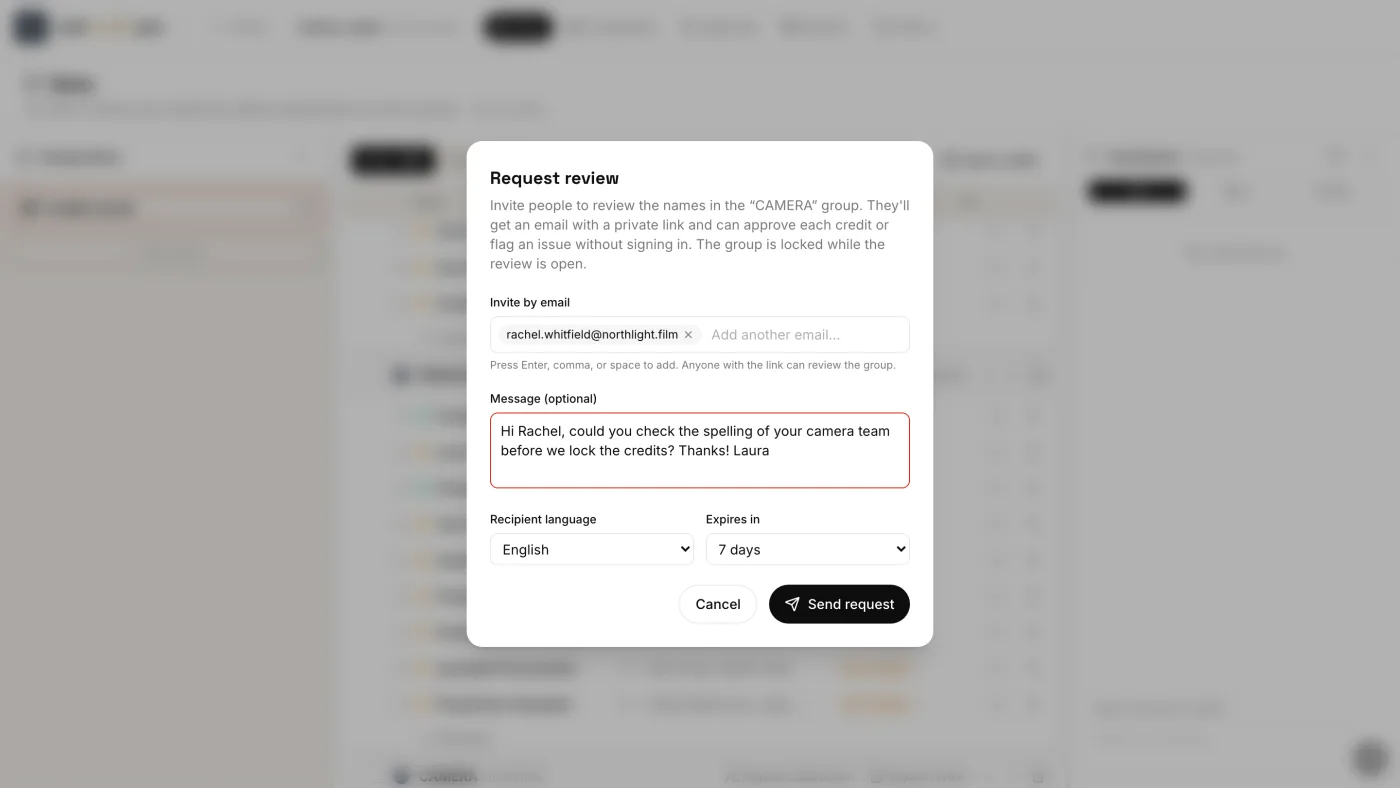
Each person gets an email with a private link. They don’t need an account or a password.
While the review is open, the group shows Pending review and is locked: “This group is locked until the review is resolved.” Under it you see each reviewer, marked Opened or Not opened, with Resend (the same link again) and Cancel request (closes the link and unlocks the group).
3. They check each line
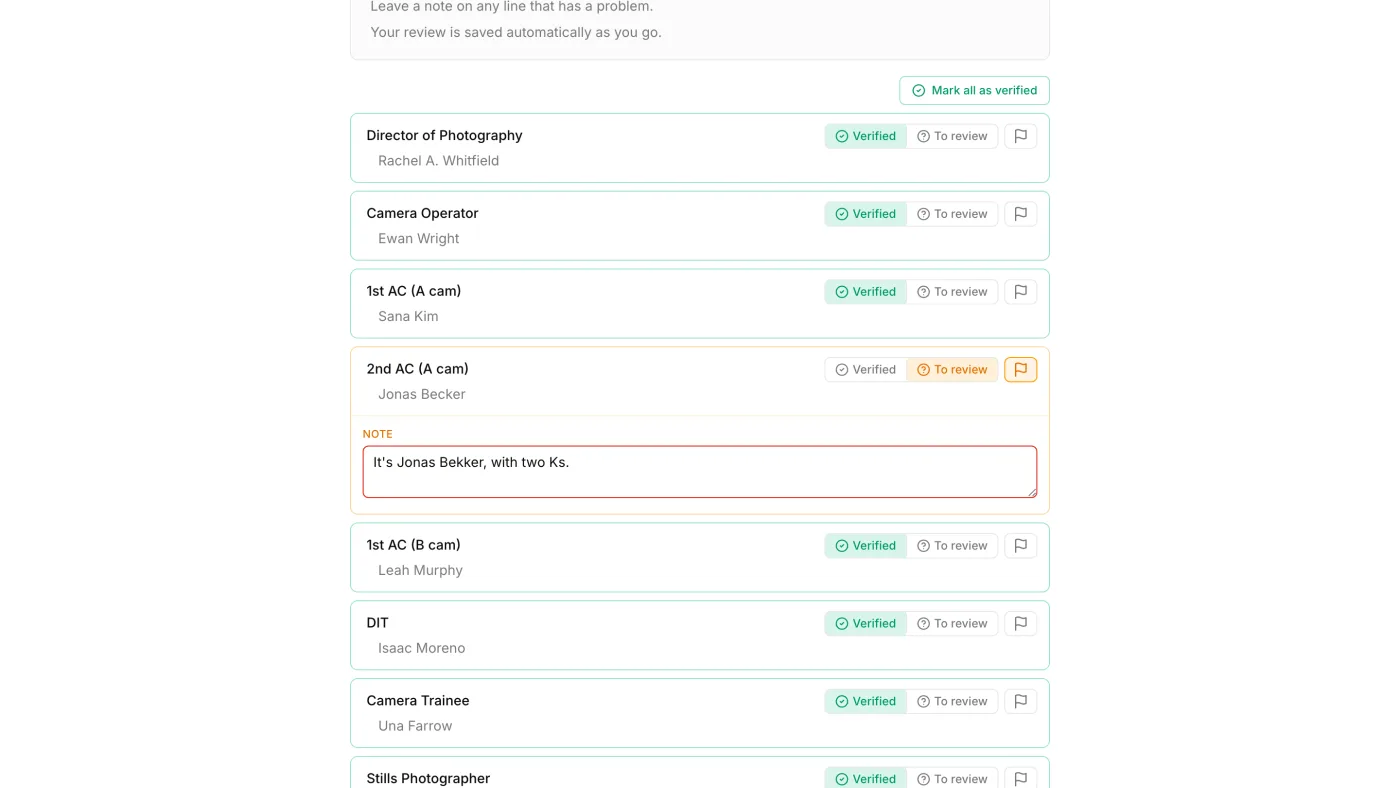
On their page (“Laura Bennett asked you to review these credits”), the reviewer sees your message and every line of the group, each with Verified and To review:
- when a line is right, they choose Verified, or click Mark all as verified for the whole group;
- when something is wrong (a spelling, a missing name), they click the flag to add a note on that line, for example “It’s Jonas Bekker, with two Ks”. Writing a note sets the line to To review.
They can’t add, change or delete names. Their review saves as they go; they can click Continue later and come back to the same link until it expires. When they’re done, they click All done, I’ve finished and confirm with Submit. You get an email and a notification that the review is completed.
4. Accept or decline
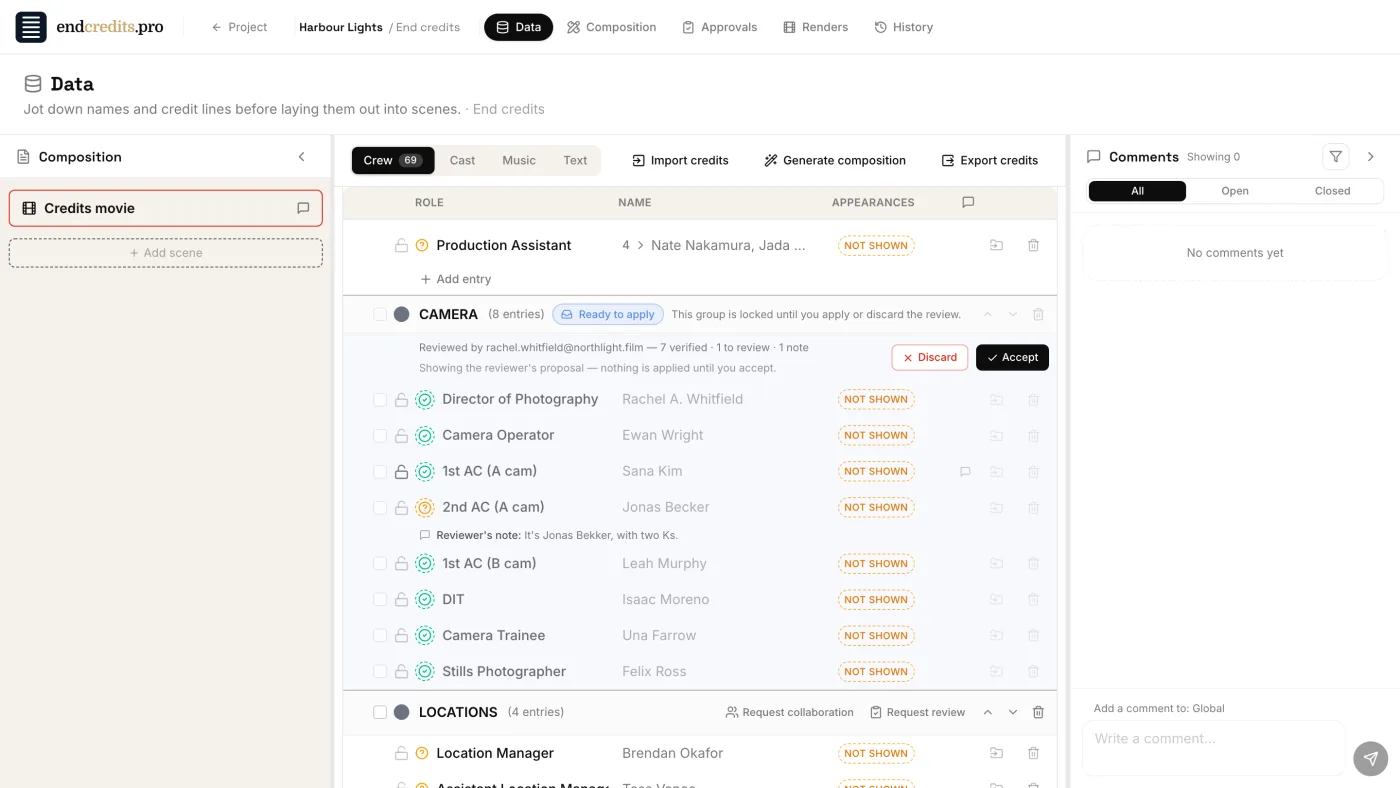
Back in the Data tab, the group shows Ready to apply, who reviewed it and a summary, for example “7 verified · 1 to review · 1 note”. You see their proposal on each line and their notes under it (“Reviewer’s note: …”): “Showing the reviewer’s proposal — nothing is applied until you accept.”
- Accept applies the review: every line they verified becomes Verified and records who checked it and when (”✓ Verified by … · date” on the status icon); lines they left at To review become To review; each note becomes a comment on that credit. The group unlocks.
- Discard declines the review: nothing in your credits changes, and the group unlocks.
5. Fix and lock
Correct the names they flagged: their notes are now comments on those credits. Editing a line sets it back to To review; mark it verified again once it’s right. Then lock the lines that are final with the padlock.
Related pages
Try it on your own production
EndCreditsPro is free during the beta. Credits from day one.
Last updated October 22, 2026.