Picture lock
Comments and review links
Leave feedback pinned to the exact line, name or block it's about, and send people outside your team a private review link. They don't need an account.
The video loads from YouTube when you press play. Watch it on YouTube.
Feedback on credits usually comes back as screenshots in a long email thread, and by the time you read it, half of it no longer applies. In EndCreditsPro every note is pinned to the credit it’s about. Your team comments inside the app. People outside it, like the director, get a private review link and leave their notes on the same credits.
Before you start
- Admins, editors, reviewers and approvers on the project can write comments and close them. Viewers can read the credits but not comment.
- To send a review link with Share you need to be an admin, editor or approver.
- Guests who get a review link don’t need an account.
Steps
1. Comment on a credit
- Open the Composition tab and click a line in the preview, or select it in the Composition panel on the left.
- Below the preview, the comments panel shows Add a comment to: followed by where you are, for example Global > Scene 2 > CAMERA > Camera Operator.
- Type your note in Write a comment… and send it.
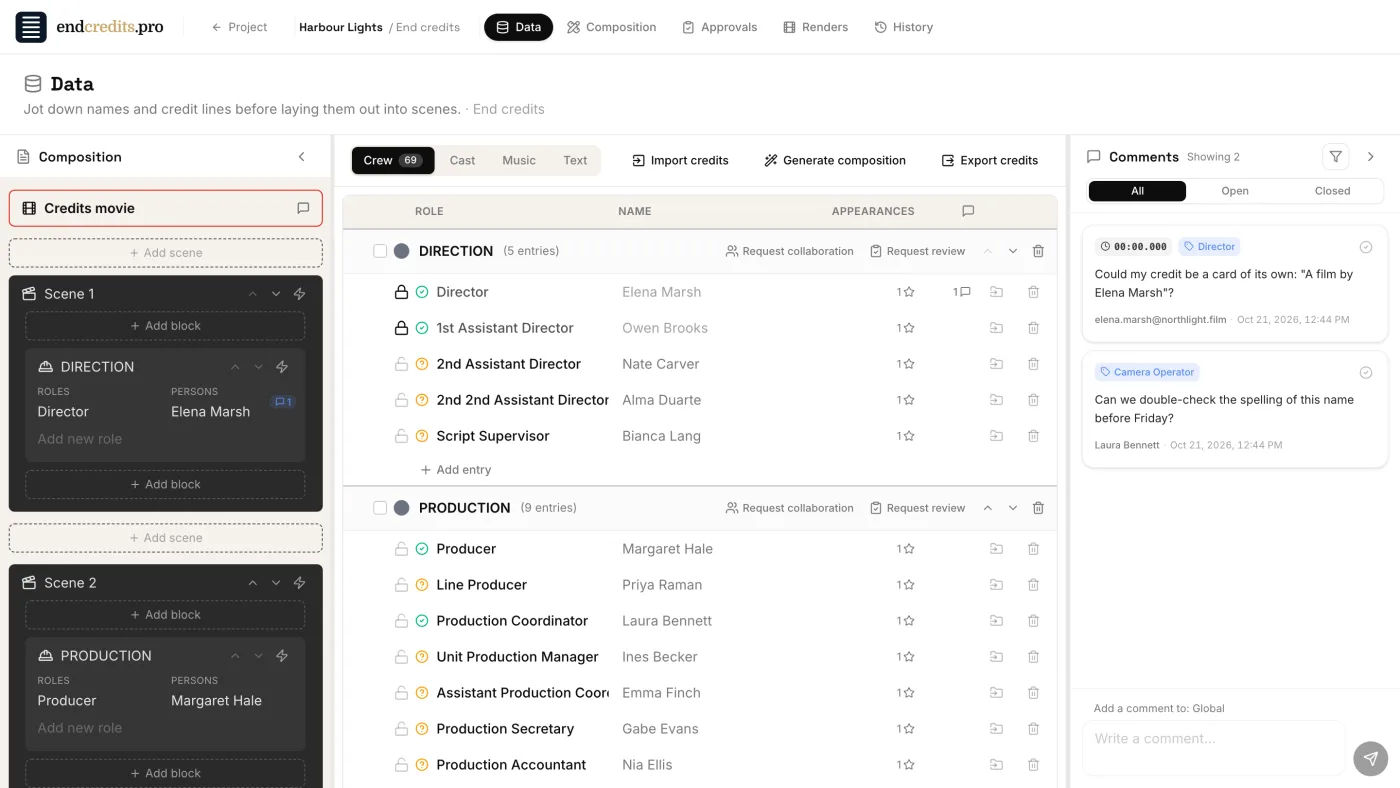
You can also comment from the Data tab: click the comment icon on a credit line to see its comments and add one, or use Show comments to open the comments column next to the list.
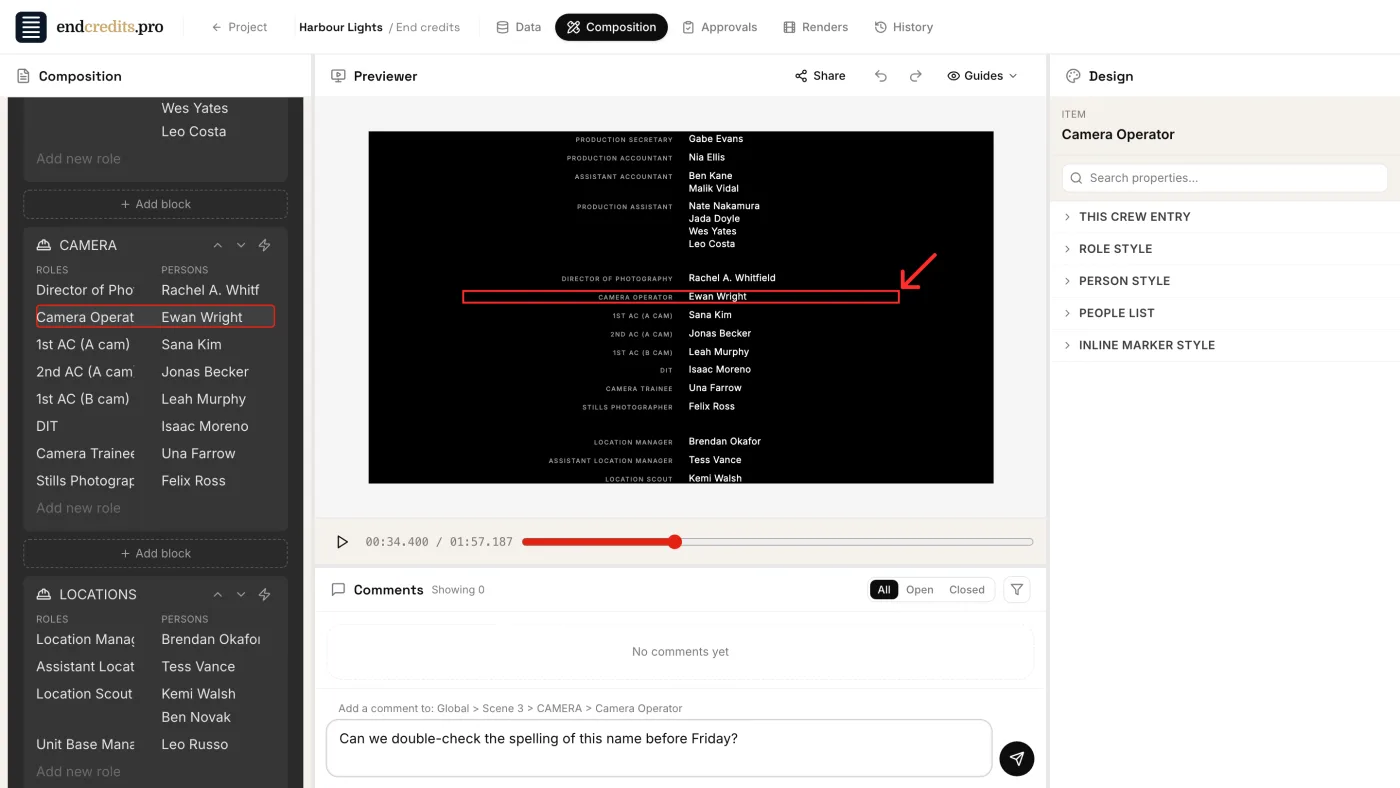
What you click decides what the comment is about:
| You click | The comment is about | Where it shows |
|---|---|---|
| A credit line or a name | The content: that credit | In the Data tab and on every placement of that credit in the Composition. It stays with the credit if you move it to another scene. |
| A scene or a block | The position: that part of the layout | In the Composition, on that scene or block. If you delete the scene or block, the comment goes with it. |
2. Share for review
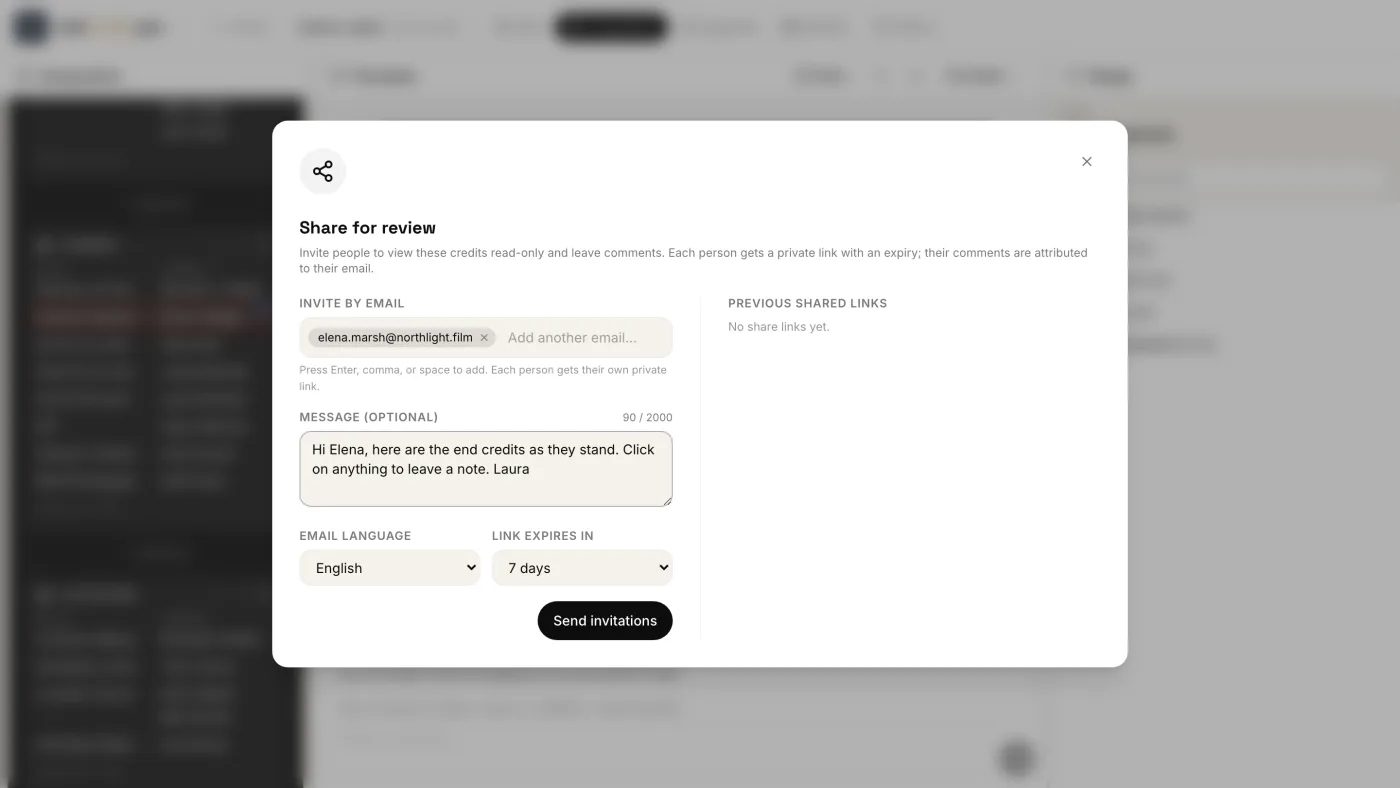
For people outside your team, open the Composition tab and click Share above the preview.
- Under Invite by email, type each address and press Enter. Everyone gets their own private link.
- Add a Message (optional) for your reviewers.
- Choose the Email language: English, Spanish or Catalan.
- Choose when the link expires under Link expires in: 1, 3, 7, 15 or 30 days. The default is 7 days.
- Click Send invitations.
3. They comment
The guest opens the link and sees “[your name] invited you to review the end credits of [project]”, your message and a read-only preview of the credits. They play the credits and click any element in the preview to leave a comment pinned to it, or write a general note.
Their comments land in your project, in the same comments panel as your team’s, with their email address as the author.
4. Close the loop
When you’ve fixed what a comment asks for, click the check mark on it (Mark as done). It turns into a green Closed label; click that label to Reopen it.
At the top of the comments panel, switch between All, Open and Closed to see what’s still pending. The filter button also narrows the list by Person and by date (From / To).
Manage the review links
Click Share again to see Previous shared links: each link is Active, Revoked or Expired, and shows whether each guest opened it or commented.
- Resend sends the invitation email again.
- Revoke closes the link straight away. The guest sees that the link was closed, and can no longer comment.
Closed links leave the list after a couple of days. Their full record (who you shared with, when it closed, and every comment) stays in the History tab.
Related pages
Try it on your own production
EndCreditsPro is free during the beta. Credits from day one.
Last updated October 22, 2026.