Post-production
Global styles and fonts
Set the look of your credits once, in the global defaults: role and name styles for cast, crew, music and text, with any Google Font or your own uploaded typeface.
The video loads from YouTube when you press play. Watch it on YouTube.
This page covers the part from 0:29. Jump to 0:29 on YouTube.
Every style in your credits starts in one place: the global defaults. Set the font, size, weight, colour, spacing and case there, and every scene and every block follows. You only change a single scene or block when it has to look different.
Before you start
- You need to be an admin or editor on the project to change the design.
- You need a composition with at least one scene. If you don’t have one yet, see Build the crawl.
- To use your own typeface, have the font file ready as TTF or OTF.
Steps
1. Open the global defaults
- Open the Composition tab.
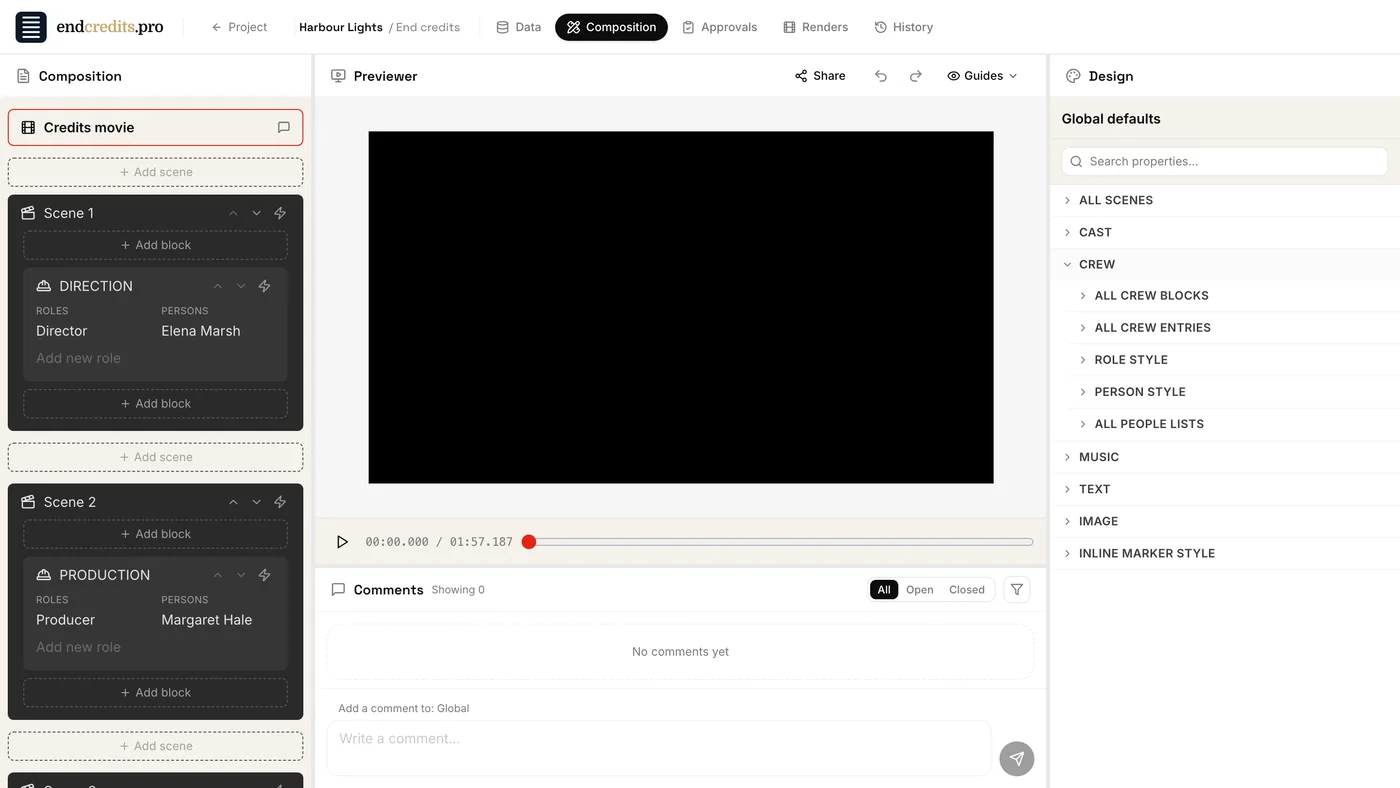
- At the top of the left panel, click Credits movie.
The Design panel on the right now shows Global defaults. Settings here have no override checkbox: whatever you set applies everywhere, unless a scene or block below says otherwise.
2. Find the kind of credit
The global defaults are grouped by the kind of credit:
| Group | Sections |
|---|---|
| All scenes | Scene type, timing, fades, vertical alignment, background color |
| Cast | All cast blocks, All cast entries, Character style, Actor style, All actors lists |
| Crew | All crew blocks, All crew entries, Role style, Person style, All people lists |
| Music | All music blocks, All songs, Song style, Song credit style, All song-credit lists |
| Text | All text blocks, All text entries, Text style |
| Image | All image blocks, All images, Caption style |
| Inline marker style | The style of text marked inside a line |
Click a group to open it, then a section. If you know the setting’s name, type it in Search properties… at the top of the panel.
3. Style the roles and the names
Each kind of credit has two text styles: one for the line and one for the names under it. For the crew, Role style is the job title (“Director of Photography”) and Person style is the name (“Rachel Whitfield”). For the cast they are Character style and Actor style; for music, Song style and Song credit style. Text blocks have a single Text style.
Each text style has the same settings:
- Font family and Weight
- Font size, in vw: a share of the frame’s width, so the credits keep their proportions at any resolution
- Color
- Line height and Letter spacing
- Text case: None, Uppercase, Lowercase, Capitalize or Small caps
- Text alignment
The line styles (Role style, Character style, Song style, Text style) also have Hide label, to show only the names.
Every change appears in the Previewer straight away.
4. Pick a font
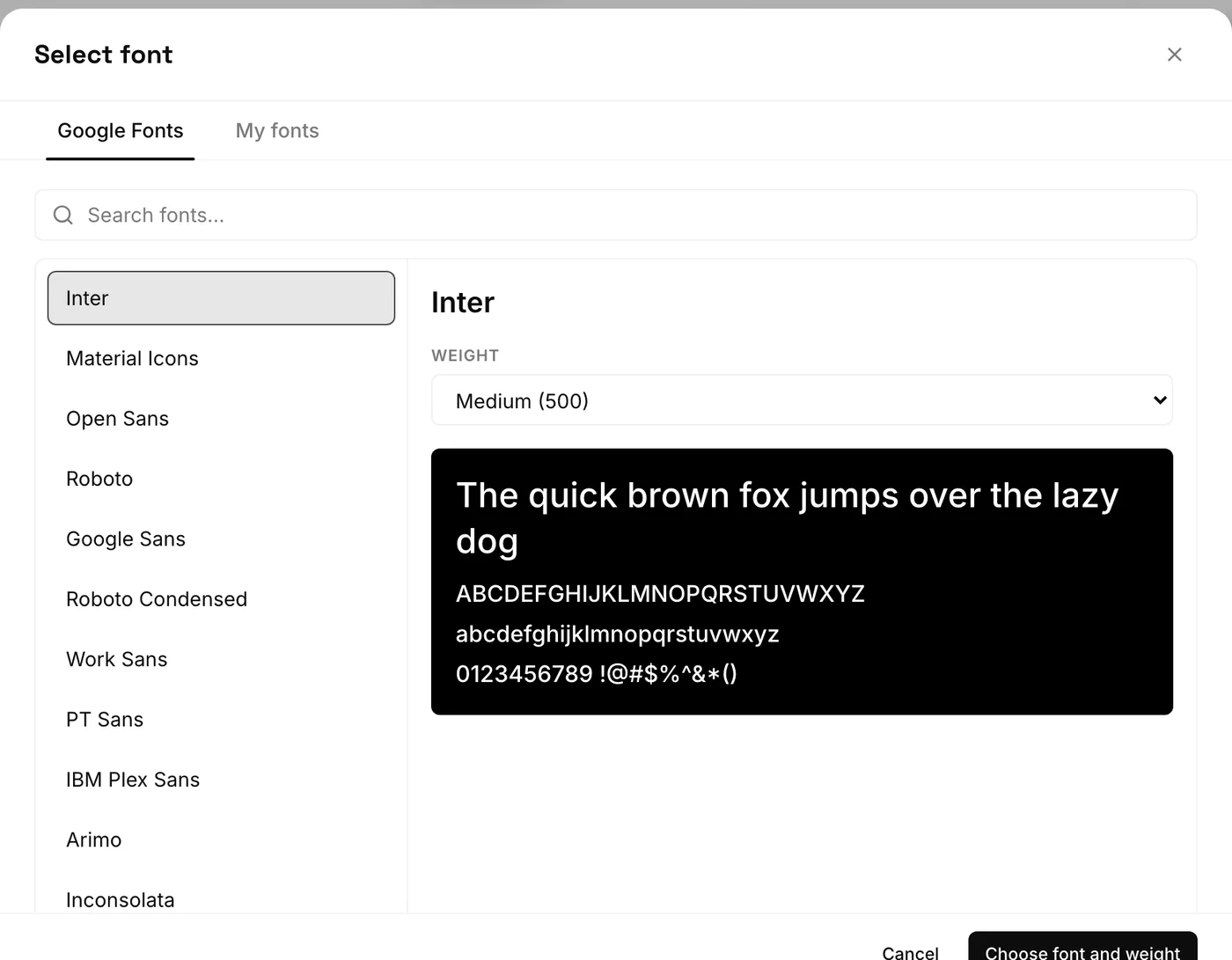
Click the Font family field to open Select font. It has two tabs:
- Google Fonts: search the catalogue, pick a family and a Weight, check the preview, and click Choose font and weight.
- My fonts: the fonts you uploaded, under “From this project” and “From your organization”. Pick one and click Choose font.
5. Upload your own font
To use the typeface from your poster or titles:
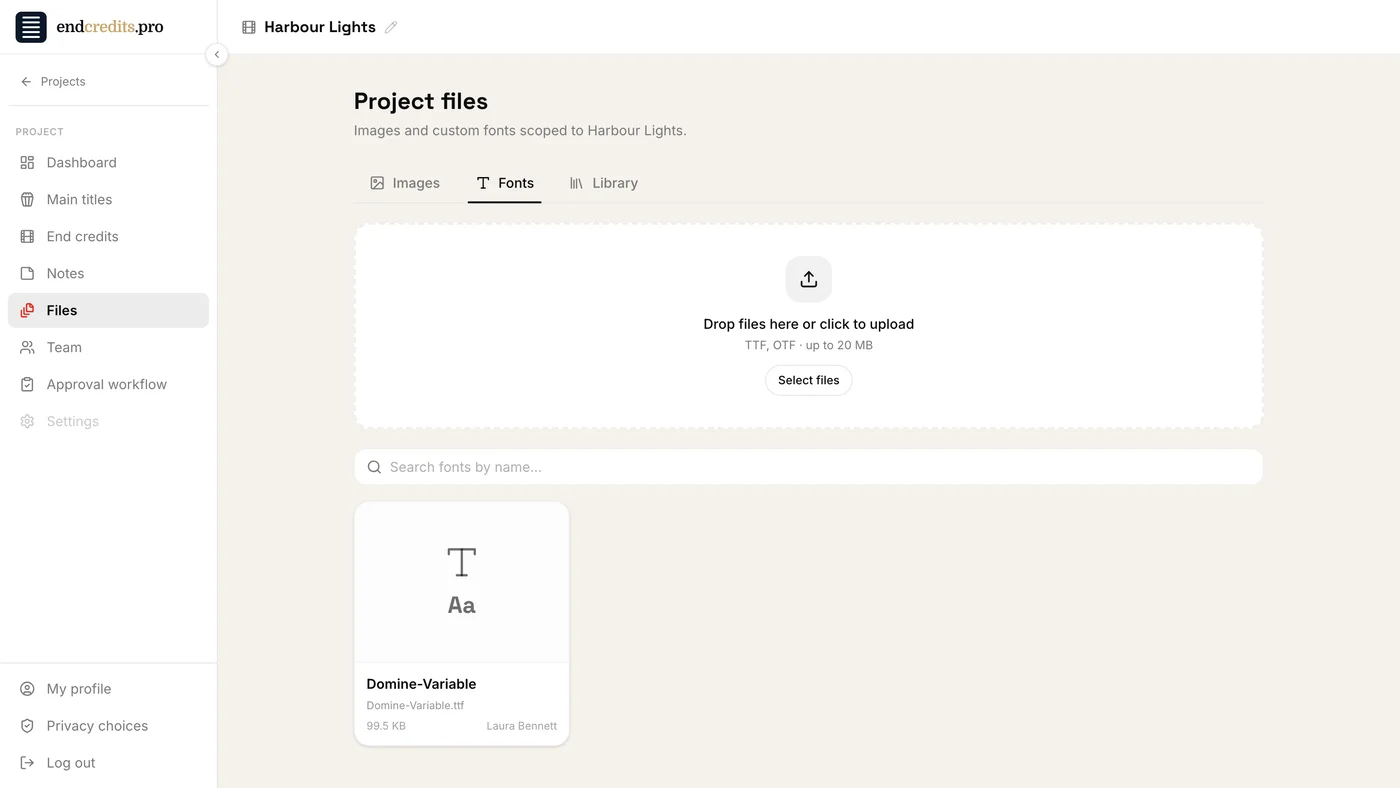
- Open Files in the project’s sidebar (or in the organization’s sidebar, to share the font with every project).
- Open the Fonts tab.
- Drop the file, or click Select files: TTF, OTF · up to 20 MB.
The font then appears in My fonts in the font picker. Upload each weight you need (regular, bold…) as its own file.
Related pages
Try it on your own production
EndCreditsPro is free during the beta. Credits from day one.
Last updated October 22, 2026.