Post-production
Cards, scrolls and timing
Make each scene a card that holds on screen or a scroll that moves up the frame, and time a scroll by a fixed duration, a time in view or a speed.
The video loads from YouTube when you press play. Watch it on YouTube.
This page covers the part from 2:31. Jump to 2:31 on YouTube.
Every scene in the Composition is either a card, which holds still on screen, or a scroll, the classic end crawl that moves up through the frame. A card simply has a duration. A scroll can be timed in three ways, and with two of them the crawl gets longer by itself as you add names.
Before you start
- You need to be an admin or an editor on the project.
- Timing is set in the Composition tab, in the Design panel on the right. While the credits are locked by an approval workflow, the composition can’t be changed.
- Timing settings inherit like every other style: set them once for every scene under Credits movie, or for one scene only. See Inherit and override.
Steps
1. Select the scene
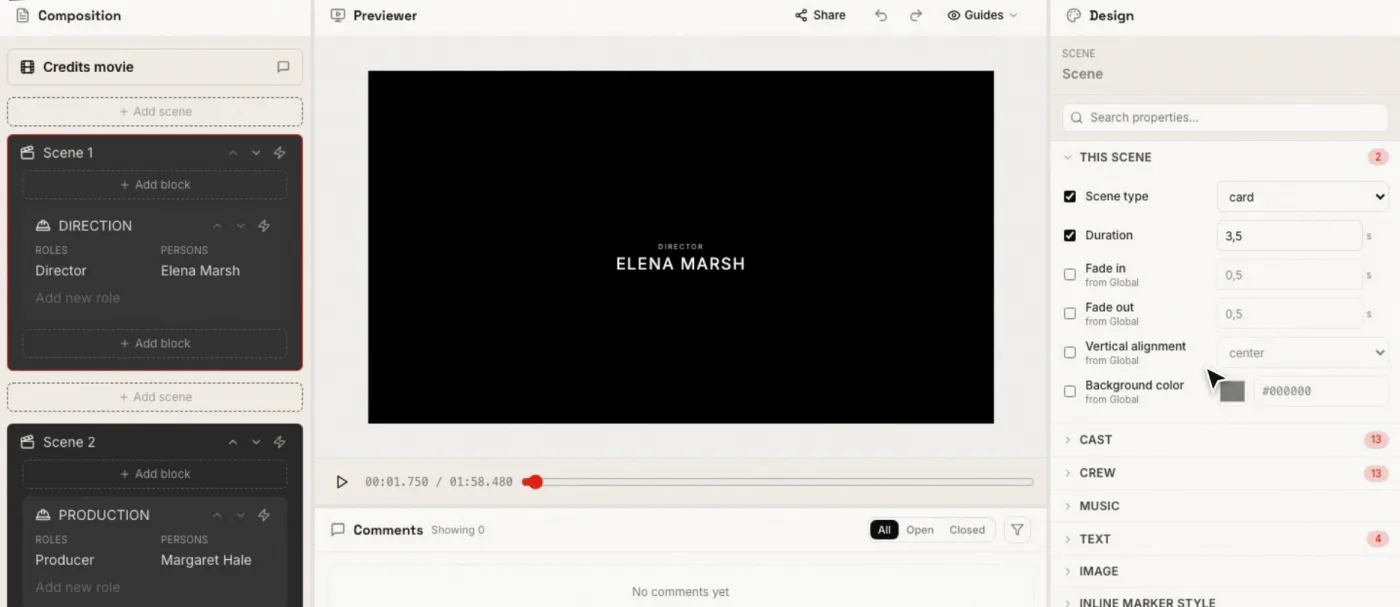
In the Composition panel on the left, click the scene you want to time, for example Scene 1. The Design panel shows the This scene section with its timing settings.
To set the timing for every scene at once, select Credits movie at the top instead and open All scenes in the Global defaults.
2. Choose card or scroll
Tick Override Scene type and choose:
- Card: the scene appears, holds on screen, and goes. Use it for the opening cards and the key credits that stand alone, like the director’s.
- Scroll: the scene enters from the bottom of the frame and moves up until its last line has left at the top.
For a card, Vertical alignment (Top, Center or Bottom) places the content in the frame.
3. Time a card
A card has one setting: its Duration, in seconds. The default is 4 seconds; the cards that Generate composition creates last 3.5 seconds.
4. Choose how the scroll is timed
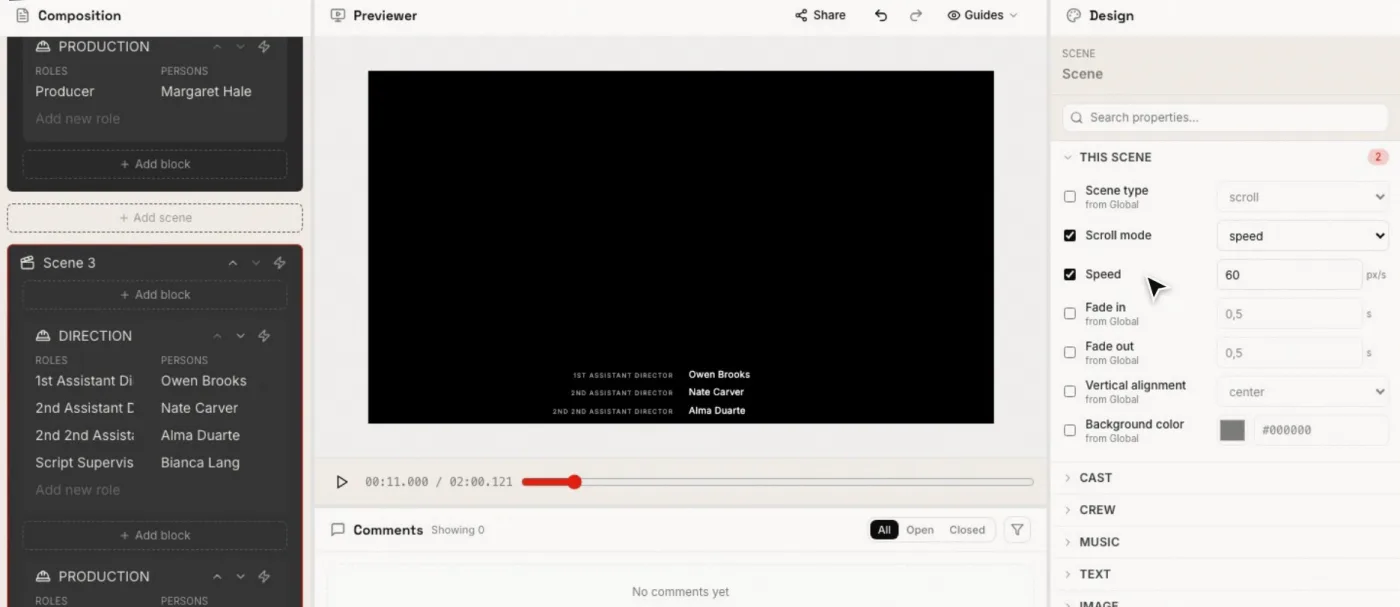
For a scroll, pick a Scroll mode. Only the setting that matches the mode is shown below it.
| Scroll mode | You set | How long the scroll lasts |
|---|---|---|
| Fixed duration | Duration, in seconds | Exactly that long, however many names it holds. Add names and the crawl moves faster. |
| Time in view | Time in view, in seconds | The time one line takes to cross the frame, from the bottom edge to the top. The scroll lasts that time multiplied by its height in screens: a crawl three screens tall, plus the screen it enters from, lasts four times the time in view. |
| Speed | Speed, in pixels per second | The distance the crawl travels (its own height plus the height of the frame) divided by the speed. The default is 60 px/s. |
With Time in view or Speed the pace stays the same and the length follows the content: add a department and the crawl grows longer by itself, instead of speeding up. Speed is measured on a frame 1080 pixels high, so the same value gives the same timing in the preview and in a render at any resolution. At 60 px/s, a line takes 18 seconds to cross a 1080-pixel frame.
The scroll scenes that Generate composition creates use Speed at 60 px/s.
5. Set the fades
Fade in and Fade out (in seconds, 0.5 by default) fade the whole scene in at its start and out at its end. The fades happen inside the scene’s length, they don’t add to it: a 4-second card with half-second fades is fully visible for 3 seconds. Set them to 0 for a cut.
6. Check the total length
Press play in the Previewer. The timeline under the preview shows the current time and the total length of the credits, which updates as you change the timing or add names.
Related pages
Try it on your own production
EndCreditsPro is free during the beta. Credits from day one.
Last updated October 22, 2026.