Post-production
Columns and alignment
Put roles side by side in up to three columns, split a long list of names into columns, and align roles and names inline (inner or outer) or stacked.
The video loads from YouTube when you press play. Watch it on YouTube.
This page covers the part from 3:14. Jump to 3:14 on YouTube.
Three settings decide how a credit sits on screen: the columns of a block (roles side by side), the list layout of a line (its names in a row or in columns), and the entry layout with its content alignment (where the role sits relative to its names). Each one can be set for the whole film, a scene, one block or one line.
Before you start
- You need to be an admin or an editor on the project.
- All three settings are in the Composition tab, in the Design panel. What you select in the Composition panel on the left decides what you change: Credits movie for every block, a block for that block, a role for that line only.
- Changing a value below the Global defaults means ticking its Override box first. See Inherit and override.
Steps
1. Put roles side by side: block columns
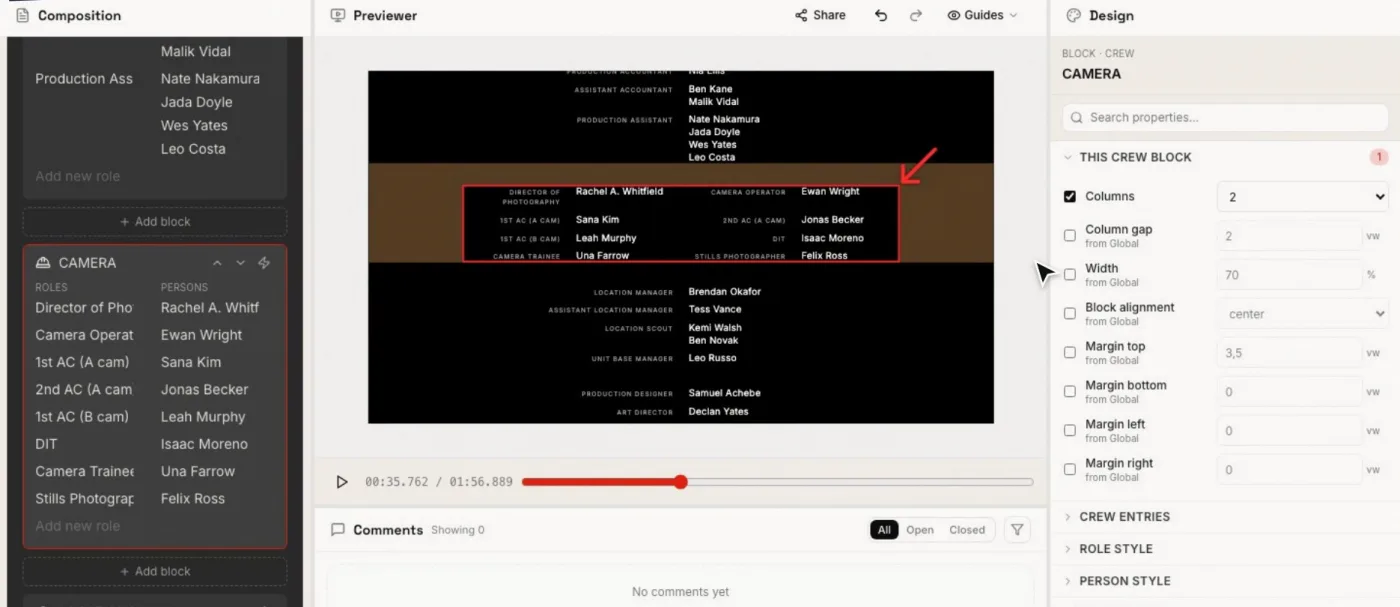
Say you want the Camera department in two columns.
- In the Composition panel, click the CAMERA block.
- In This crew block, tick Override Columns and choose 2.
A block can have 1, 2 or 3 columns (image blocks go up to 5, see Logos and images). The lines fill the columns from left to right, then start a new row: with two columns, the first role sits on the left, the second on the right, the third on the left of the next row.
In the same section, Column gap sets the space between the columns, Width the width of the block, and Block alignment (Left, Center, Right) where the block sits in the frame.
2. Split a long list of names: list layout
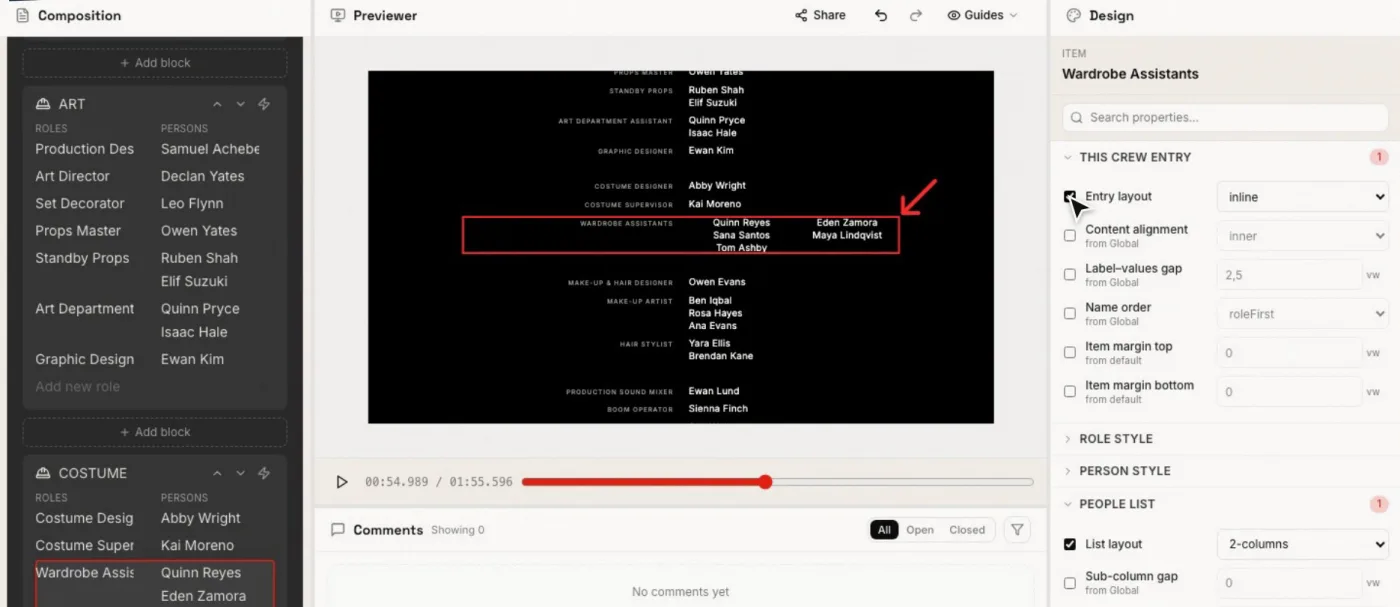
Now a single role with many names, like the wardrobe assistants.
- In the Composition panel, click the role Wardrobe Assistants in its block.
- Open People list (for a cast line, Actors list), tick Override List layout and choose one of:
| List layout | The names under the role |
|---|---|
| Stacked | One under the other (the default). |
| Inline | In one row, joined by the Separator and Last separator you choose, for example a comma and ”&“. |
| 2 columns | In two columns. |
| 3 columns | In three columns. |
With 2 or 3 columns, two more settings appear: Sub-column gap, the space between the name columns, and Column text alignment, how the text sits in each column (Inner makes the columns face each other, Outer turns them away).
3. Place the role and its names: entry layout
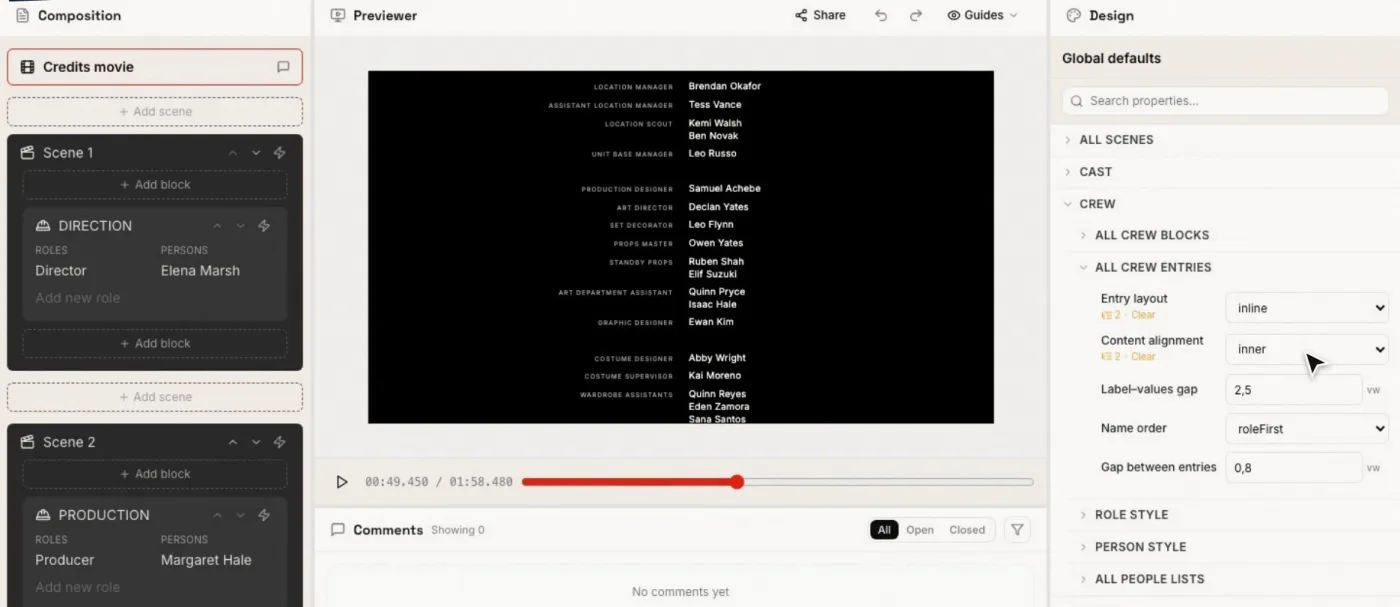
Select the line (or, for every crew line in the film, Credits movie → Crew → All crew entries) and set its Entry layout:
- Stacked: the role on top, its names centred underneath.
- Inline: the role and its names share one row.
4. Align them: content alignment
Content alignment has five options:
| Content alignment | With Inline | With Stacked |
|---|---|---|
| Left | Role and names both aligned left | Aligned left |
| Center | Centred | Centred under the role |
| Right | Role and names both aligned right | Aligned right |
| Inner | The role aligned right and the names left, meeting in the middle: the classic end crawl | Not offered |
| Outer | The role at the left edge and the names at the right edge | Not offered |
Inner and Outer only appear in the list when the entry layout is Inline. With Inline and Inner, Label–values gap sets the space in the middle between the role and its names.
A composition made with Generate composition or an import already starts with Inline and Inner for its crawl.
Related pages
Try it on your own production
EndCreditsPro is free during the beta. Credits from day one.
Last updated October 22, 2026.