Post-production
Inherit and override
How scenes, blocks, lines and names inherit their style from the global defaults, how to see where a value comes from, and how to change one scene or block without touching the rest.
The video loads from YouTube when you press play. Watch it on YouTube.
This page covers the part from 1:21. Jump to 1:21 on YouTube.
Styles in EndCreditsPro flow downwards. You set them once in the global defaults, and every scene, block, line and name follows. When one part has to look different, you override that setting at that level only: everything else keeps following the global defaults, and later changes to them still reach it.
Before you start
- You need to be an admin or editor on the project to change the design.
- Set the overall look first in Credits movie (the global defaults): see Global styles and fonts.
The levels
Each level inherits from the one above it:
| Level | What you select in the Composition panel | What it can change |
|---|---|---|
| Global | Credits movie | Everything: the defaults for the whole credits |
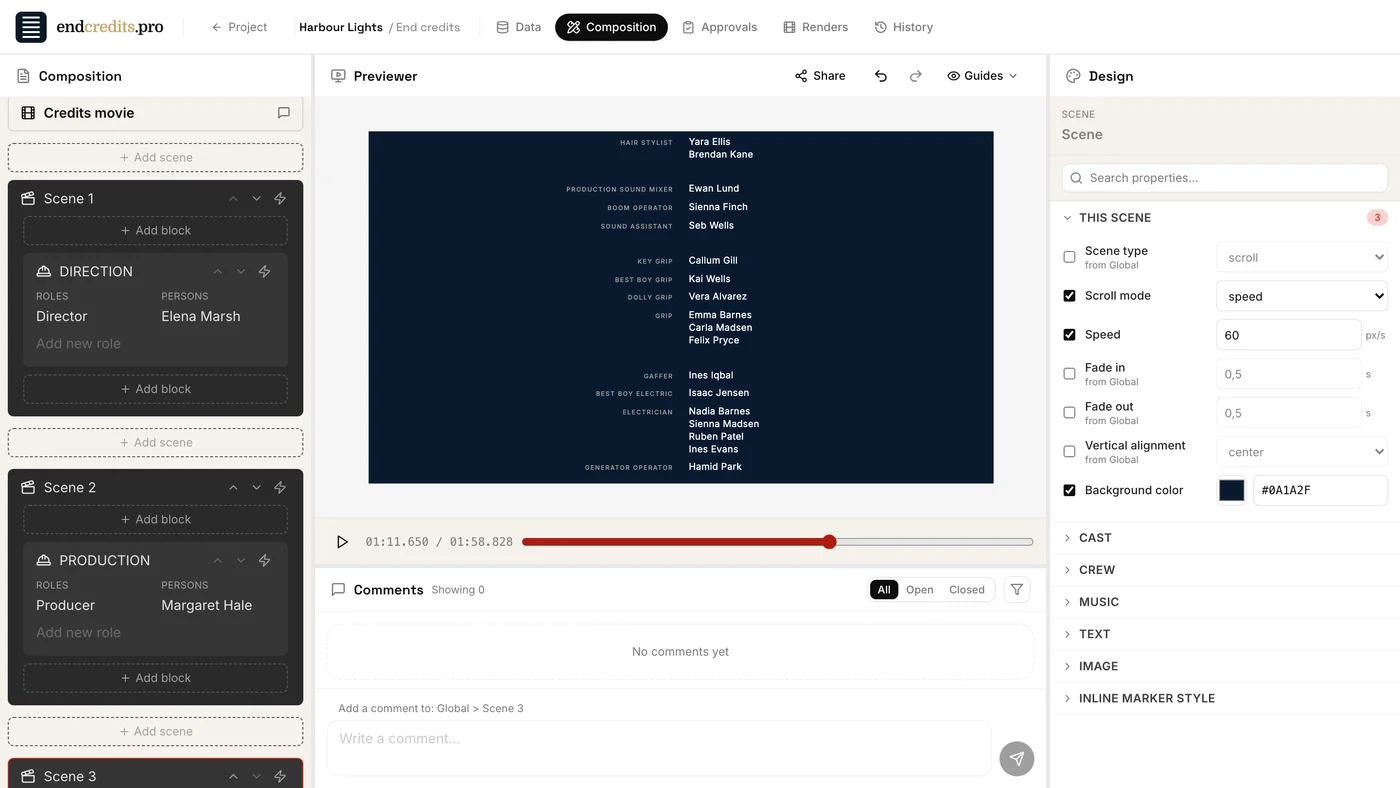
| Scene | A scene’s header (Scene 1, Scene 2…) | Its timing and background, and the styles of every block inside it |
| Block | A block’s header (DIRECTION, CAMERA…) | Its columns, width, margins and the styles of its lines |
| Line | One credit line in a block | Its layout, its list of names and its text styles |
| Name | One name under a line | Its own text style |
Timing and background belong to scenes, and columns and margins to blocks, so they stop at that level. Text styles go all the way down to a single name. You can also click a credit in the Previewer to select it.
Steps
1. See where a value comes from
Select a scene or a block and open any section in the Design panel. Under the name of each setting, a small note tells you where its value comes from:
- from Global: set in the global defaults;
- from a scene or block name: set on a level above this one;
- from default: nobody has set it, so the app’s default applies.
When there is no note, this level owns the value.
2. Override a setting
- Select the scene, block, line or name you want to change.
- Find the setting in the Design panel. Its control is greyed out while it’s inherited.
- Tick the checkbox at its left (Override + the setting’s name).
- Give it a new value.
The note disappears, because this level now owns the value. The section’s header shows a count of the settings you’ve overridden in it, and the group (Cast, Crew…) adds up its sections, so you can spot what’s been customised without opening everything.
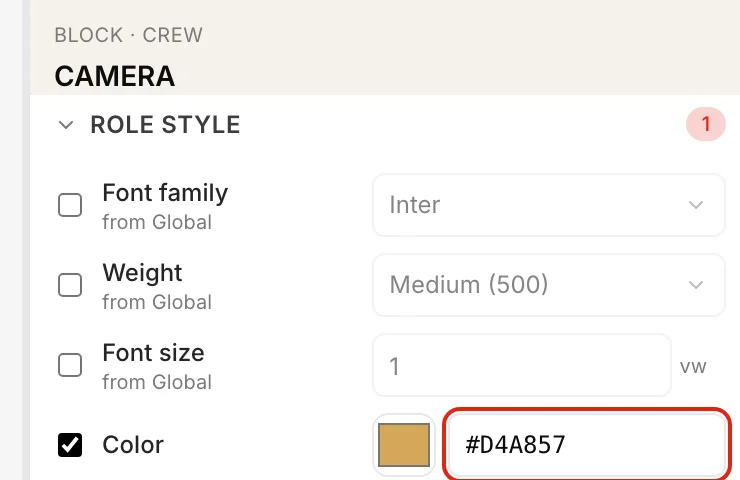
To change one department only, select its block. In the example below, the CAMERA block gets its own role colour, while the font, weight and size still come from Global.
3. Go back to the inherited value
Untick the override checkbox. The setting follows the level above it again, and the note comes back.
4. Clear overrides from a higher level
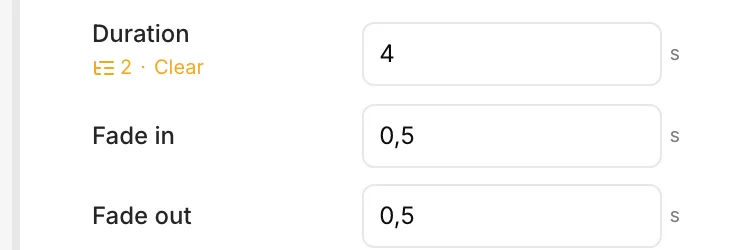
When scenes or blocks below override a setting, the setting shows a warning at the higher level: a tree icon, the number, and Clear (“2 descendants are overriding this property”). Click Clear to remove that override from all of them at once, so they follow this level again.
Styles for one placement
A line or a name keeps its overrides in the block where you set them. If the same credit is placed in two blocks, each placement has its own style: making a name bold in the end crawl doesn’t change it on its card. The text of the name is still shared, so a spelling fix reaches both.
Related pages
- Global styles and fonts Set the role and name styles once for every scene, with Google Fonts or your own.
- Cards, scrolls and timing Card duration, and three ways to time a scroll: duration, time in view, speed.
- Columns and alignment Roles side by side, long lists in columns, inline, inner, outer and stacked.
- Design properties Every style setting, its levels and its default.
Try it on your own production
EndCreditsPro is free during the beta. Credits from day one.
Last updated October 22, 2026.