Pre-production and shoot
Let the departments fill it in
Send the head of each department a private link to add their own crew to the credits, then accept or decline what they send. No account needed on their side.
The video loads from YouTube when you press play. Watch it on YouTube.
The people who know a department best are the ones who should write it down. A collaboration request sends one group of your credits, say the Art department, to its head by email. They fill it in on a private page, and you decide whether it goes into your credits.
Before you start
- You need to be an admin, editor or approver on the project.
- Requests work on a group in the Data tab (a department, a cast tier, a music or text section). Lines that are in no group can’t be sent: put them in a group first. The group can be empty: create it with Add group and ask for it.
Steps
1. Lock what is already final
If some credits in the group are already confirmed, for example the Production Designer, click the padlock on those lines before you send the request. On the collaborator’s page a locked line is read-only (“Locked by the requester — read-only”), and it stays untouched when they submit.
Do this first: once the request is sent, the whole group is locked in your app until the request is resolved.
2. Send the request
- Open the Data tab and find the department’s group.
- Click Request collaboration at the right of the group’s header.
- Under Invite by email, type the address of the person who runs the department and press Enter. You can add more than one.
- Add a short Message (optional) so they know what you’re asking for.
- Choose the Recipient language of the invitation email: English, Spanish or Catalan.
- Choose when the link Expires in: 1, 3, 7, 15 or 30 days. The default is 7 days.
- Click Send request.
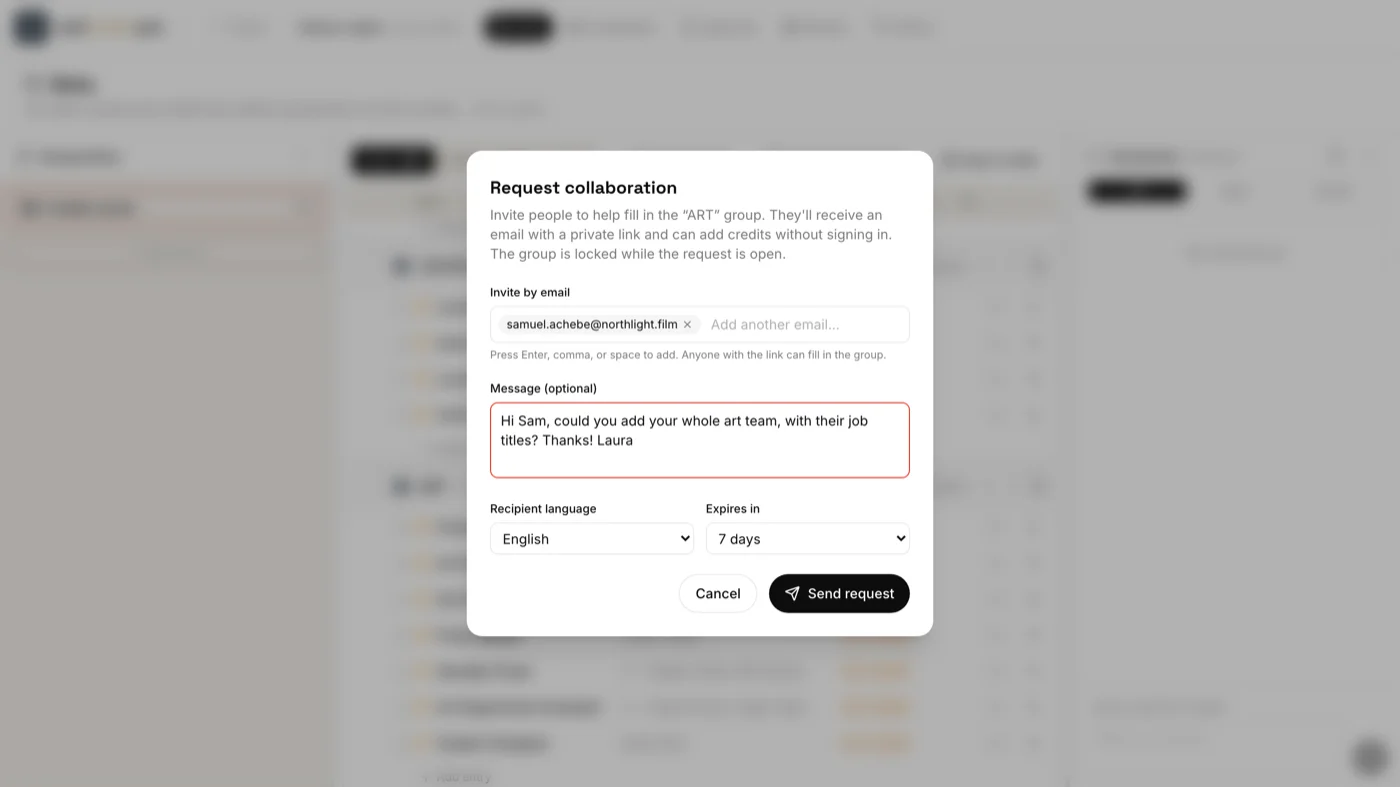
Each person gets an email with a private link to their own page. They don’t need an account or a password.
3. Wait while the group is locked
While the request is open, the group shows Pending collaboration with an amber clock: nobody can edit it in the app, so their work and yours never collide. Under the group you can see each invitee, marked Opened or Not opened, and two buttons:
- Resend sends the invitation email again, with the same link.
- Cancel request closes the link and unlocks the group. The invitees get an email saying the request was cancelled.
4. They fill it in
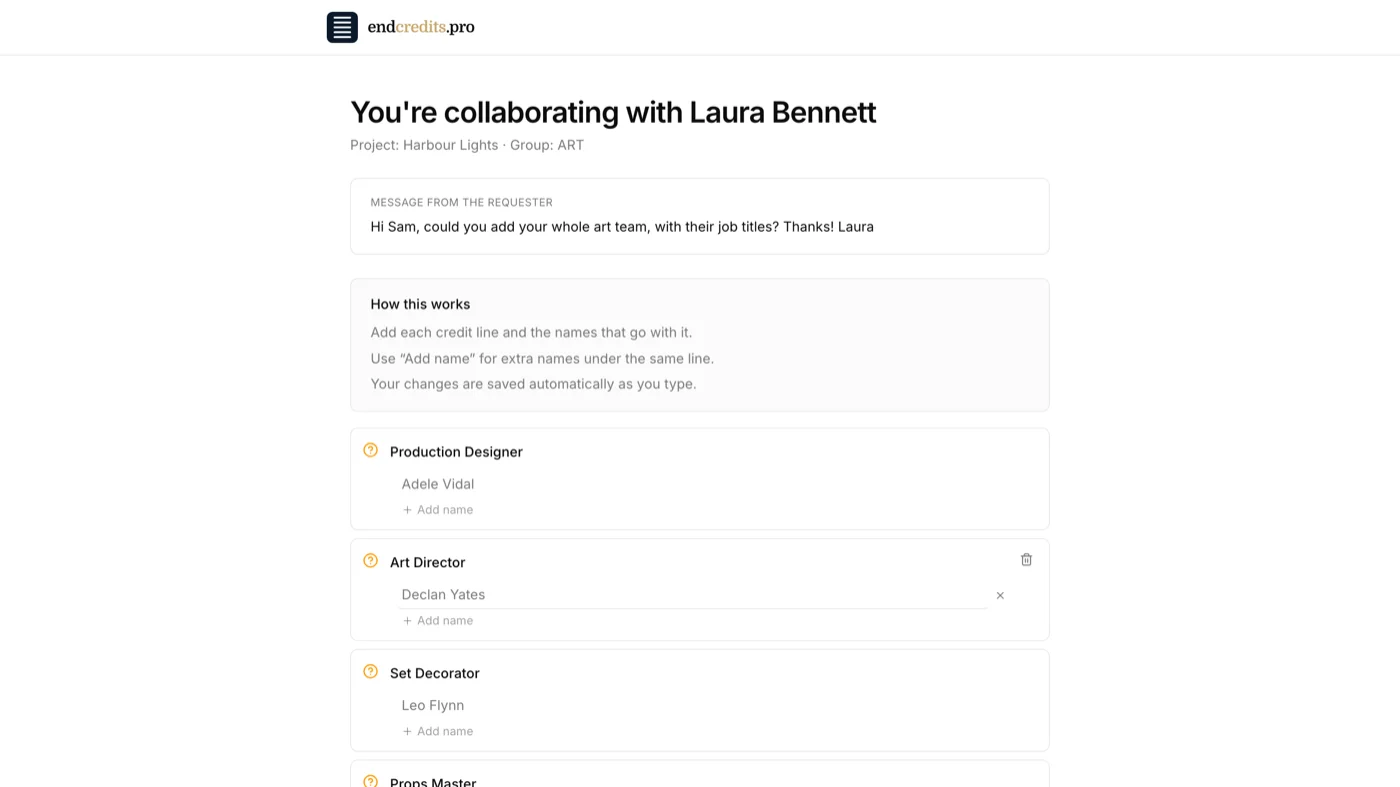
On their page, the collaborator sees your message and only that group. They can:
- add credit lines with Add credit, and several names under one line with Add name;
- correct the lines that are already there (except the locked ones);
- mark each line Verified or To review — not yet verified, if they aren’t sure of a name yet. New lines start as Verified.
Their work saves as they type. They can click Continue later and come back to the same link until it expires. When they’re done, they click All done, I’ve finished and confirm, and you get an email saying the group was filled in.
5. Accept or decline
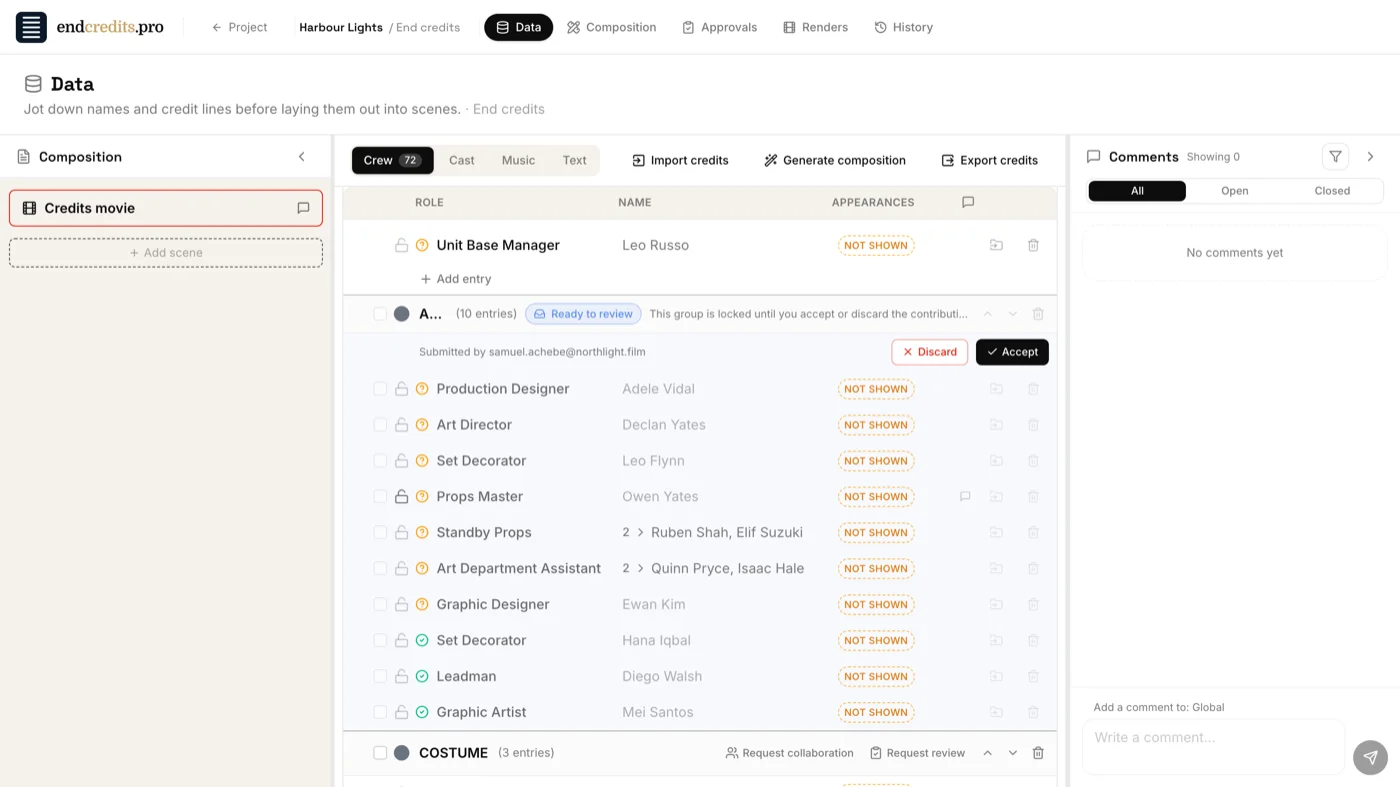
Back in the Data tab, the group now shows Ready to review and who submitted it. Read through it: the lines they added are at the end of the group.
- Accept keeps their changes: the new and corrected lines become part of your credits, and the group unlocks.
- Discard declines the contribution: the group goes back to exactly how it was when you sent the request, and unlocks.
Ask every department at once
Each group can have one open request at a time, but different groups can all be pending together. Send Art to the production designer, Sound to the sound mixer, Costume to the costume designer and Camera to the director of photography: each group waits for its own answer, and the work of collecting names is shared across the crew.
If nobody answers
When a link expires without a submission, the group unlocks by itself and you get an email that no one responded. Anything the collaborator typed but didn’t submit is not added. To try again, send a new request.
Related pages
- Get the spelling right Ask the people who know the crew to verify every name.
- Import your crew lists Bring an Excel, CSV or Word file, or paste text: names are sorted by department.
- Key concepts Data, Composition and Design: every name lives in one place, through the whole lifecycle.
- Roles and permissions What admins, editors, approvers, reviewers and viewers can do.
- Beta usage limits Renders, imports and invitation emails during the free beta.
Try it on your own production
EndCreditsPro is free during the beta. Credits from day one.
Last updated October 22, 2026.