Pre-production and shoot
Import your crew lists
Bring an Excel, CSV or Word file, or paste text from an email: EndCreditsPro sorts every name by department, and you check the preview before anything is saved.
The video loads from YouTube when you press play. Watch it on YouTube.
Names rarely arrive in one place: a crew list in Excel from the line producer, a cast list in Word from casting, the camera team in an email. Instead of retyping them, import them. EndCreditsPro reads the file or the text, sorts every line into cast, crew, music or text, groups the crew by department, and shows you a preview before anything is added to your credits.
Before you start
- You need to be an admin or editor on the project.
- The import goes into the credits you have open: the end credits or the main titles (and, in a series, that episode).
- You can bring an Excel file (
.xlsx), a CSV file, a Word document (.docx), a plain-text file, or text you paste. - While the credits are locked by an approval workflow, Import credits is disabled.
Steps
1. Open the import
- Open the Data tab.
- Click Import credits in the toolbar.
- Choose Import from text (Excel, CSV, Word or pasted text).
2. Add the file or the text
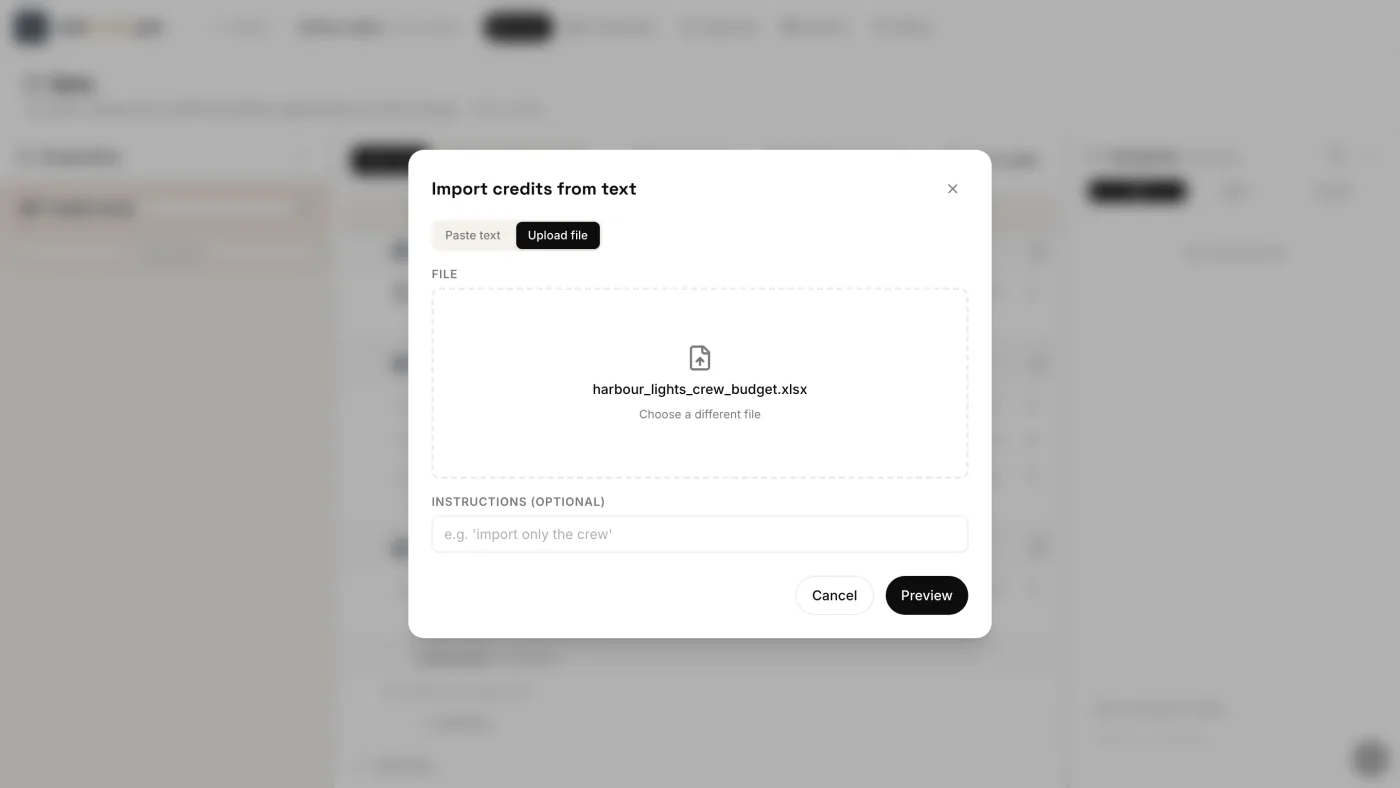
- On the Upload file tab, drag the file onto Drag & drop a file here, or click Choose file.
- On the Paste text tab, paste the list, for example straight from an email.
If you only want part of it, say so under Instructions (optional), for example “import only the crew”. Then click Preview.
3. Wait while it reads
Analyzing your credits shows how far the reading has got. A short list takes moments; a long workbook can take a few minutes. You can cancel at any time: nothing has been saved yet.
4. Check the preview
The preview has three tabs:
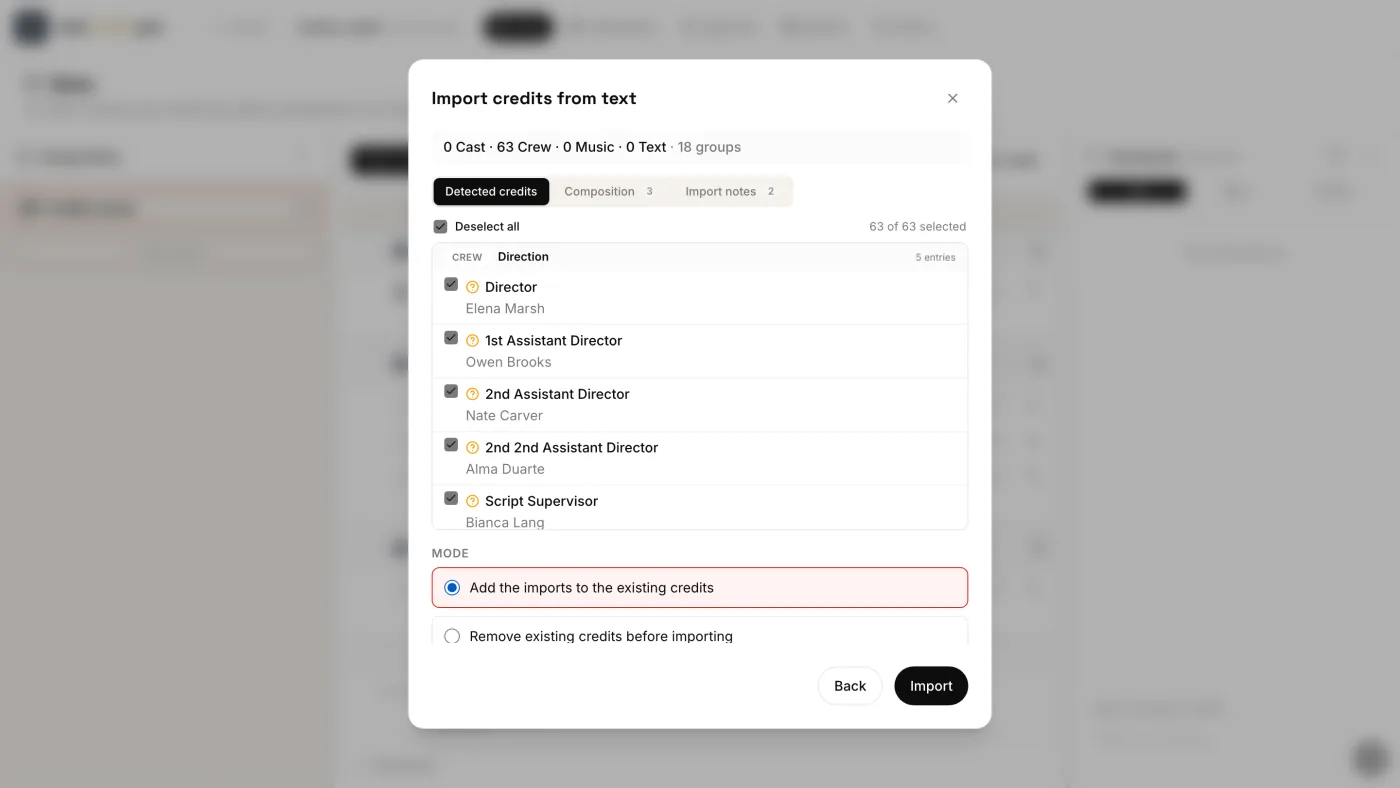
- Detected credits: every credit line it found, with its role and names, grouped by department, and a count of cast, crew, music and text lines. Untick any line you don’t want; Deselect all / Select all toggles them all.
- Import notes: “What the model noticed”: what it wasn’t sure about, and any warnings. Read them before you import.
- Composition: the scenes and blocks it would create, if you choose to generate the composition (step 6).
5. Add to your list, or replace it
Under Mode, choose:
- Add the imports to the existing credits (the default). New groups are added after yours. If a department is already in your list, the new names go straight into it: groups are matched by name, ignoring upper/lower case and extra spaces, so “Camera” from an email lands in your “CAMERA”.
- Remove existing credits before importing, when you’re starting over. Every cast, crew, music and text line and every group in these credits is replaced by the import. Before anything is removed, the current credits are saved in the History as a Before import version, so you can go back to it. See History and versions.
6. Generate the composition (optional)
Tick Generate the composition to also lay the imported credits out into scenes and blocks, in the order of the source, with a starter design. Director, writer and producer credits get their own cards, in guild order. The Composition tab of the preview shows what it will create.
The box starts ticked when you replace the credits or when the composition has no scenes yet, and unticked when you add to a composition that already has some. When adding, the new scenes go after the existing ones; when replacing, they take the place of the current scenes. Leave it unticked if you’d rather build the layout yourself: see Build the crawl.
7. Import
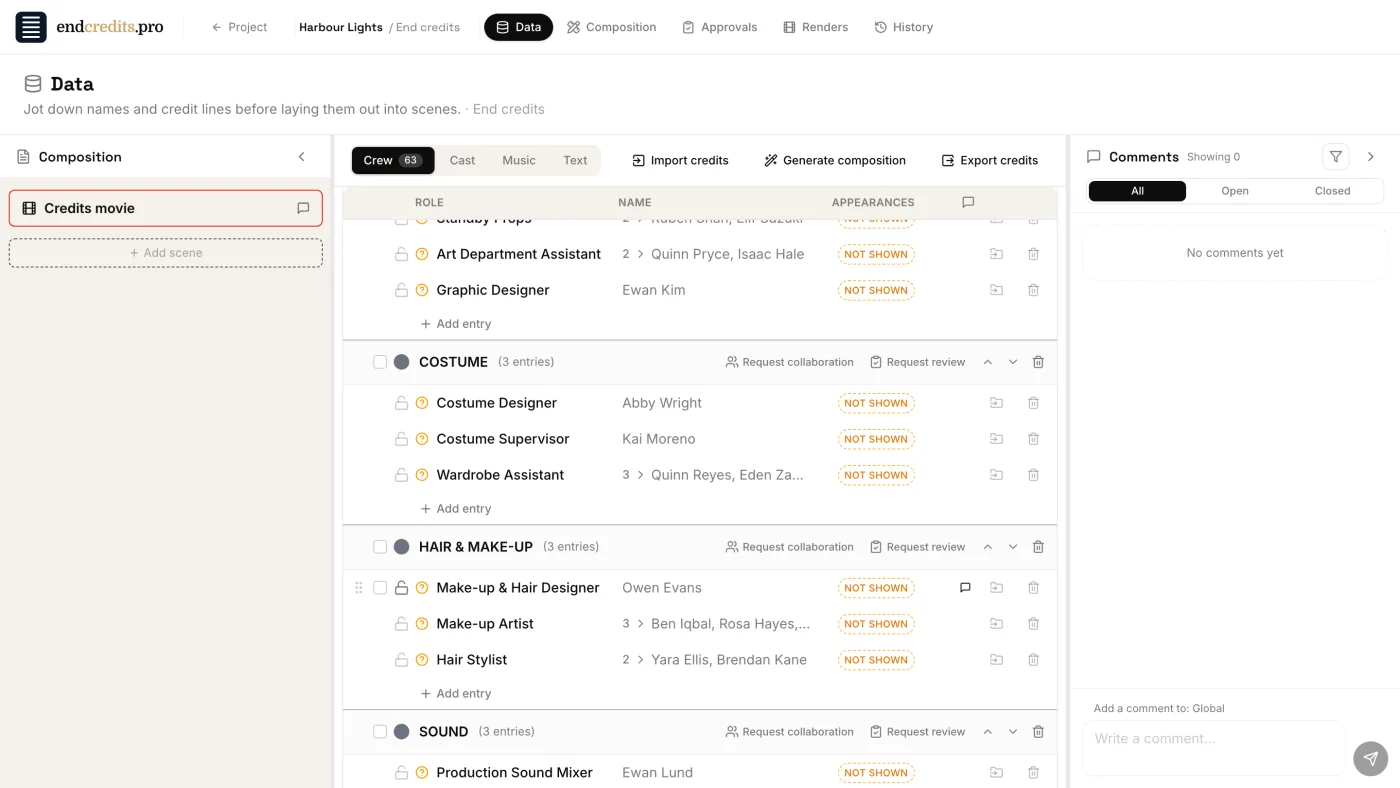
Click Import. The new lines appear in the Data tab, inside their groups.
Check what you imported
Imported lines arrive as To review, with the amber icon, just like a line you typed yourself. When a name is confirmed, click the icon and choose Mark verified: EndCreditsPro records who verified it, and when. When a credit is final, click the padlock so nobody changes it by mistake.
If the source has a column that says whether each credit is confirmed (Yes/No, OK…), the import uses it: confirmed lines arrive as Verified. Notes in a comments column become comments on the credit.
To have the heads of department check the names, see Get the spelling right.
Related pages
Try it on your own production
EndCreditsPro is free during the beta. Credits from day one.
Last updated October 22, 2026.