Delivery
Export for the edit
Download your credits as a text file or an Excel workbook, in the order of the Composition, for an editor who builds the credits in their own editing software.
The video loads from YouTube when you press play. Watch it on YouTube.
This page covers the part from 1:39. Jump to 1:39 on YouTube.
Some editors prefer to build the credits in their own editing software (After Effects, Premiere, Resolve, Avid). They still shouldn’t retype them from a PDF: Export credits gives them the checked names as a text file or an Excel workbook, in the order of your Composition, ready to paste into title layers.
Before you start
- Anyone on the project can export.
- The export follows the Composition: place your credits in scenes and blocks first (see Build the crawl). If nothing is placed yet, the dialog says so and there’s no order to export.
Steps
1. Open Export credits
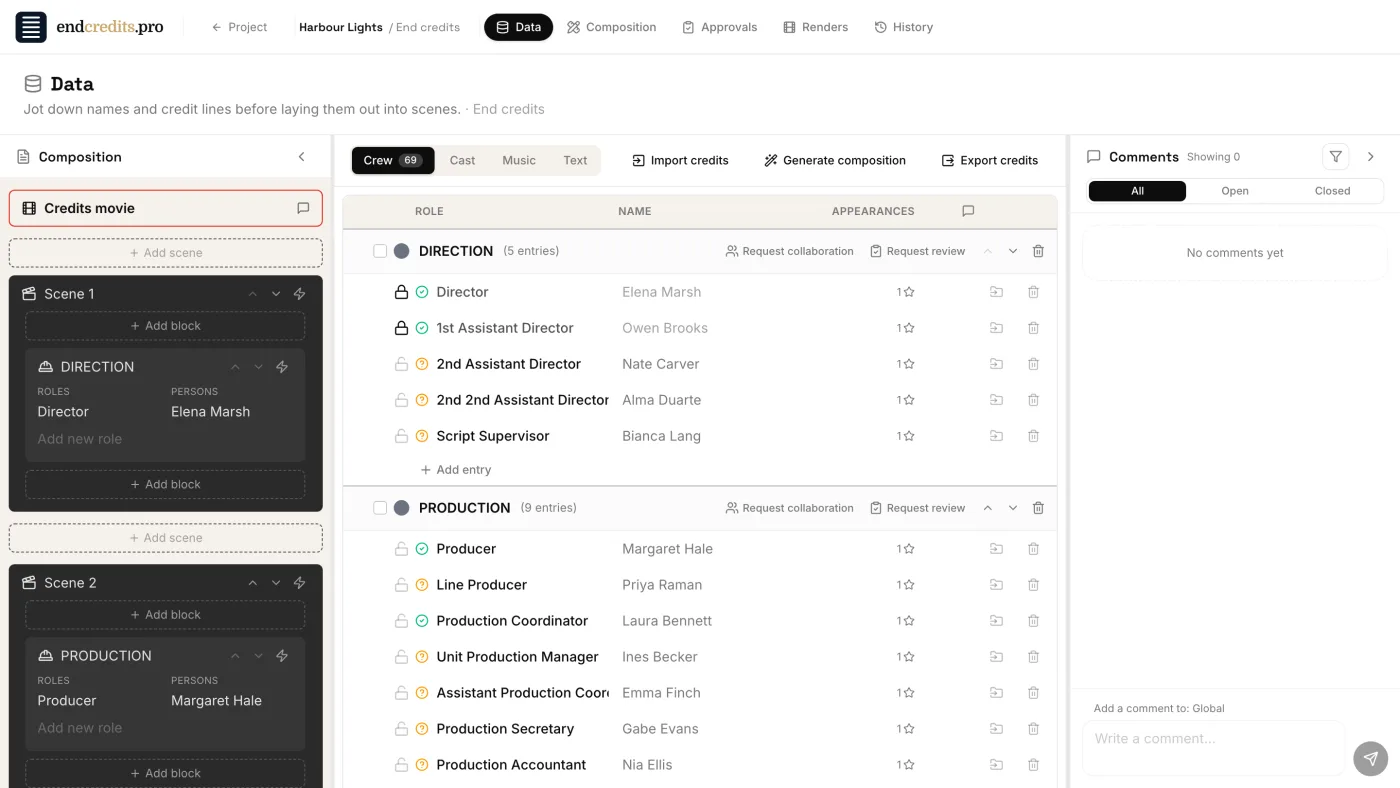
Click Export credits in either place:
- at the top of the Renders tab, next to + New Render;
- in the Data tab toolbar, next to Import credits and Generate composition.
2. Check the warnings
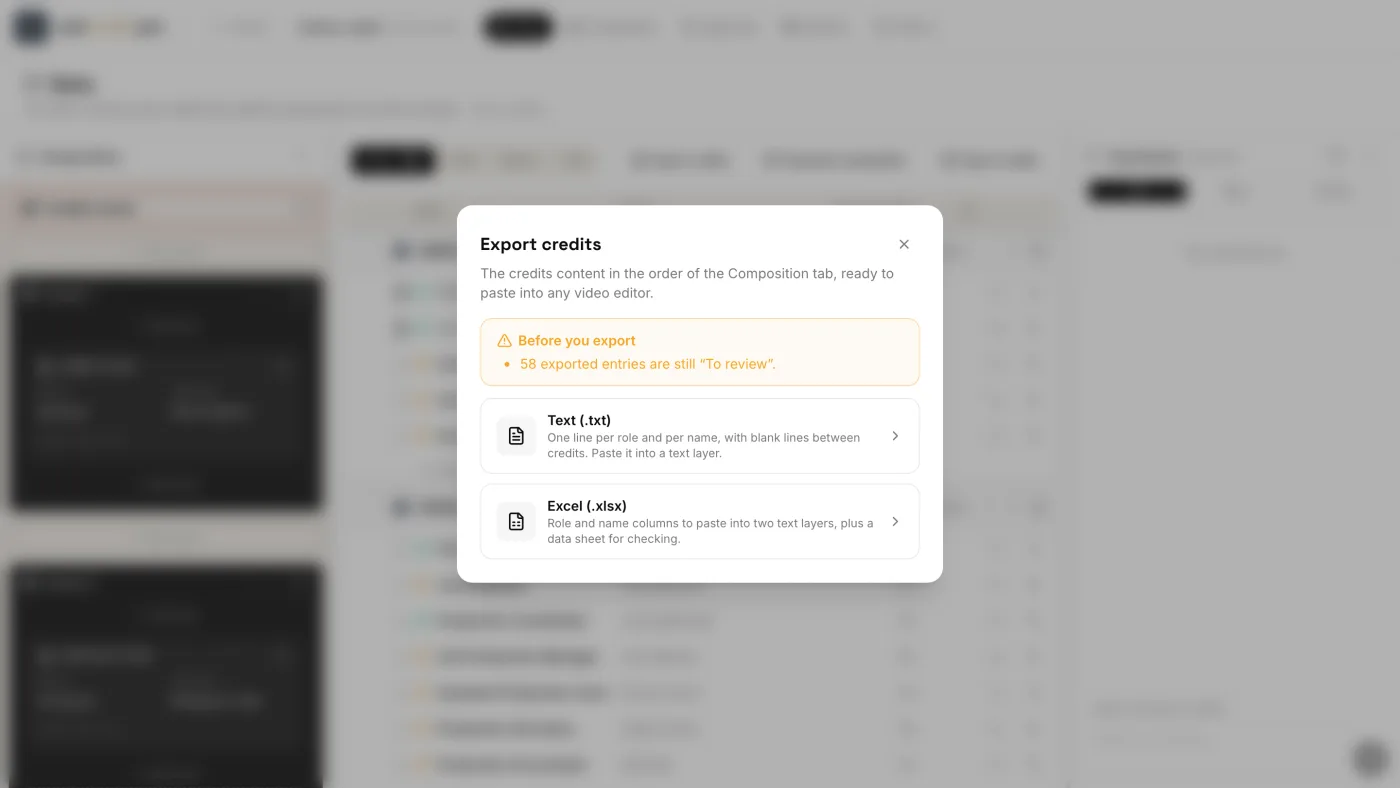
Under Before you export, the dialog warns you about anything you may want to fix first:
- credit lines that aren’t placed in any block, so they won’t be in the ordered export;
- exported lines still marked To review;
- lines with collaborator changes waiting for your review.
The warnings don’t block the export. They’re there so a name nobody has checked doesn’t end up in the film by accident.
3. Choose the format
Click one of the two options. The file downloads straight away.
- Text (.txt): one line per role and per name, with blank lines between credits. Paste it into a text layer.
- Excel (.xlsx): role and name columns to paste into two text layers, plus a data sheet for checking.
What’s in the files
Both files follow the Composition: scene by scene, block by block, credit by credit, as they appear on screen.
Text (.txt). Each credit is its role line followed by one line per name. One blank line separates credits, two separate blocks and three separate scenes. An image block becomes a line such as [IMAGE: logo.png], so a logo is never silently lost.
Excel (.xlsx) has two sheets:
| Sheet | What it’s for | Columns |
|---|---|---|
| Composition | Pasting. One row per name, with the role only on the credit’s first row, so the role column and the name column paste into two text layers line for line. Blank rows keep the same spacing as the text file. | Scene, Block, Role / character / song, Name |
| Data | Checking, for the producer, the distributor or the lawyers. One row per name, with the role on every row so you can sort and filter. Credits that aren’t placed come last. | Order, Scene, Scene type, Block, Type, Group, Role / character / song, Name, Status, Placed, Pending review |
The files are named after the project, the credits and the date, for example harbour-lights-end-credits-2026-10-22.xlsx.
Related pages
Try it on your own production
EndCreditsPro is free during the beta. Credits from day one.
Last updated October 22, 2026.